 88ce5b97ac
* test: replace tmux e2e harness with cross-platform Zellij harness Rewrite the end-to-end test harness to drive `sk` through Zellij instead of tmux, keeping the same capabilities and public surface (ZellijController, Keys, wait, sk, the sk_test! DSL and the line!/keys!/out! helpers) so the existing tests port over with only import/type renames. Zellij has no detached-server model like tmux, so the harness spawns a Zellij client attached to an in-process pseudo-terminal via portable-pty (openpty on Unix, ConPTY on Windows). Because Zellij 0.44+ and portable-pty are both cross-platform, the harness — and the tests that only rely on it — are now available on Windows too: the interactive tests (formerly unix.rs) are un-gated. execute.rs, popup.rs and listen.rs stay unix-only for reasons unrelated to the multiplexer (PermissionsExt, a mock sh/tmux binary, unix sockets). Key harness details: - Session per test via `zellij attach --create` on a fixed 80x24 PTY. - Keys injected as raw terminal bytes with `zellij action write`; screen read back with `zellij action dump-screen [--ansi]`, reversed to match the old bottom-anchored indexing. - A generated config disables startup tips, pane frames, mouse mode and — the crucial bit — the kitty keyboard protocol, so injected legacy escape sequences (arrows, etc.) reach sk. - All zellij CLI calls are run under a timeout and wait() has a wall-clock budget, so a wedged server surfaces as a fast retryable error instead of hanging a test. popup.rs unsets $ZELLIJ and sets $TMUX so skim selects its tmux popup backend (the mock) rather than the zellij one while running inside a Zellij pane. Because each test spins up a full Zellij session, the e2e binaries are put in a serialized nextest test-group; CI installs Zellij (all three OSes) in place of tmux, and the obsolete tmux setup-scripts are removed. Co-Authored-By: Claude Opus 4.8 <noreply@anthropic.com> Claude-Session: https://claude.ai/code/session_016wTqRsi31RYJXEM3ZZQhQU * ci: fix rustfmt and stop Windows from cancelling the other nextest legs - Run `cargo +nightly fmt` on the new Zellij harness (rustfmt CI was red). - Set `fail-fast: false` on the nextest matrix so a failing OS leg no longer cancels the others, giving a clear pass/fail signal per platform. Co-Authored-By: Claude Opus 4.8 <noreply@anthropic.com> Claude-Session: https://claude.ai/code/session_016wTqRsi31RYJXEM3ZZQhQU * ci: install zellij via winget on Windows taiki-e/install-action has no prebuilt Zellij binary for Windows and falls back to `cargo install zellij`, which fails building openssl-sys from source on the runner. Install via winget on Windows instead (taiki-e still handles Linux/macOS), and expose winget's shim dir on PATH for the test step. Co-Authored-By: Claude Opus 4.8 <noreply@anthropic.com> Claude-Session: https://claude.ai/code/session_016wTqRsi31RYJXEM3ZZQhQU * test/ci: address review feedback on the Zellij harness - Pin the Windows winget Zellij install to 0.44.3 to match the Linux/macOS runners (reproducible CI). - Drop the unused `&locale` YAML anchor (actionlint flagged it). - `wait` now surfaces the last predicate error on timeout instead of a generic one, so a persistent failure keeps its diagnostic cause. - `output_with_timeout` tears down the child and reader threads on a `try_wait` error instead of leaking them. - Add rustdoc to the public harness surface (`sk`, `wait`, `Keys`, `ZellijController` and its methods). Deliberately not changed: a non-zero `zellij` exit is still not treated as an error (some `zellij action` calls exit non-zero in transient states — e.g. inline `sk` viewport teardown — while returning usable output; propagating it broke `inline_clear_on_exit`), and `to_lines` keeps trimming to preserve the tmux-parity bottom-anchored indexing the ported tests rely on. Co-Authored-By: Claude Opus 4.8 <noreply@anthropic.com> Claude-Session: https://claude.ai/code/session_016wTqRsi31RYJXEM3ZZQhQU * ci: put the real zellij.exe dir on PATH for the Windows test step The winget install succeeds, but its Links shim wasn't reliably visible to the `cargo nextest` step's processes, so `which("zellij")` failed and every interactive test panicked at setup. Locate the installed zellij.exe under the WinGet Packages dir and add its directory to GITHUB_PATH instead, failing the step loudly if it isn't found. Co-Authored-By: Claude Opus 4.8 <noreply@anthropic.com> Claude-Session: https://claude.ai/code/session_016wTqRsi31RYJXEM3ZZQhQU * ci: reload PATH from registry after the MSI zellij install on Windows The winget Zellij package is an MSI installer that installs to Program Files and updates the machine PATH in the registry, not a portable under WinGet\Packages — so the previous "search Packages" lookup threw. Reload PATH from the machine/user registry values (with a Program Files fallback), then export zellij's directory via GITHUB_PATH for the test step. Co-Authored-By: Claude Opus 4.8 <noreply@anthropic.com> Claude-Session: https://claude.ai/code/session_016wTqRsi31RYJXEM3ZZQhQU * test/ci: gate interactive e2e tests off Windows Enabling the interactive tests on the Windows runner surfaced a real gap: the PATH/install issues are fixed (winget install works), but under the Windows runner's ConPTY the Zellij session never renders — dump-screen stays empty and wait_ready times out with "pane not rendered yet" for every interactive test. That's a harness-runtime gap on Windows (and sk's escape-code disambiguation on Windows would be a further blocker), so gate interactive.rs `#![cfg(not(windows))]` with a TODO, keeping the harness code cross-platform. Since no Windows test now uses the harness, drop the winget Zellij install from the Windows leg; Linux/macOS still install it via taiki-e. Adjust the docs that claimed the e2e tests run on Windows. Co-Authored-By: Claude Opus 4.8 <noreply@anthropic.com> Claude-Session: https://claude.ai/code/session_016wTqRsi31RYJXEM3ZZQhQU * test(e2e): gate Zellij harness tests to Linux only The Zellij-backed e2e harness renders reliably under the Linux CI runner, but on the macOS and Windows runners the pane never comes up under their PTY (`wait_ready` times out with "pane not rendered yet"). Restrict all four e2e test files (interactive, execute, popup, listen) to `#![cfg(target_os = "linux")]`, install Zellij only on the Linux runner, and update the harness/agent/architecture docs to match. The harness code stays cross-platform so macOS/Windows e2e can be re-enabled once their runners render the session. Co-Authored-By: Claude Opus 4.8 <noreply@anthropic.com> Claude-Session: https://claude.ai/code/session_016wTqRsi31RYJXEM3ZZQhQU * test(e2e): make the Zellij harness render on macOS and Windows The Zellij e2e harness previously only came up reliably on the Linux CI runner; on macOS and Windows the pane never rendered and every e2e test timed out with "pane not rendered yet". Root cause (surfaced by capturing the Zellij client's PTY output): Zellij's client/server startup handshake is racy — the client occasionally dies with "Received empty unknown from server" and the session never renders. It's rare on Linux (flaky) but frequent on the cold macOS/Windows runners. Harden the harness so it renders everywhere instead of gating tests to Linux: - Detect a dead session fast (drain thread flags client PTY EOF) and respawn a fresh session, up to SESSION_SPAWN_ATTEMPTS times, instead of waiting out the whole render budget and failing. - Resolve the pane's shell to an absolute `bash` path via `which`; the Zellij server's own environment may not have `bash` on PATH on the macOS/Windows runners, which would leave the pane with no shell to render. - Nudge the client's terminal size until the server gives the pane a non-zero geometry to render into (the initial size can be dropped under ConPTY / a cold runner). - Give the first render its own longer budget and, on timeout, surface a tail of the Zellij client output for diagnosing runners we can't reproduce locally. Un-gate the tests accordingly: interactive.rs (pure harness) now runs on Linux, macOS and Windows; execute.rs/popup.rs/listen.rs go back to #![cfg(unix)] (Linux + macOS) — their Windows-incompatibility is POSIX mock binaries / a unix socket, unrelated to the multiplexer. CI installs Zellij on all three OSes (taiki-e on Linux/macOS, winget on Windows) and the nextest job gets a 45-minute cap so a harness regression fails fast. Co-Authored-By: Claude Opus 4.8 <noreply@anthropic.com> Claude-Session: https://claude.ai/code/session_016wTqRsi31RYJXEM3ZZQhQU * test(e2e): fix macOS session-name rejection via short ZELLIJ_SOCKET_DIR The macOS runner failed every Zellij e2e test at CLI-parse time: error: Invalid value "skim_e2e_..." for '--session <SESSION>': session name must be less than 0 characters This is not the render race the previous commit addressed. Zellij places each session's unix socket at `$ZELLIJ_SOCKET_DIR/<protocol>/<session>`, and a unix socket path is length-capped by the OS (~104 bytes on macOS). Zellij's default base is `$TMPDIR/zellij-<uid>`; on the macOS runners `$TMPDIR` is a long `/var/folders/…` path that leaves ~0 bytes for the session name, so Zellij rejects every name and the client exits before it attaches (zellij-org/zellij#4211). Linux's short `/run`|`/tmp` base never hits this, which is why it only failed on macOS. - Export ZELLIJ_SOCKET_DIR=/tmp/skim-zj (a short base) on every zellij invocation — the attached client, `action`, and `run` — so they share a short socket path well under the cap on Linux and macOS alike. - Shorten session names (`sk_<=10 chars_<6 rand>`): several were derived from long test names (e.g. execute_interactive_child_keeps_receiving_ keys_fullscreen) and exceeded Zellij's ~36-char limit and ate socket budget; the random suffix still keeps them unique. Also fix a stale doc command in AGENTS.md (`cargo nextest --tests` -> `cargo nextest run --tests`), per PR review. Co-Authored-By: Claude Opus 4.8 <noreply@anthropic.com> Claude-Session: https://claude.ai/code/session_016wTqRsi31RYJXEM3ZZQhQU * test(e2e): answer the DSR cursor-position probe so Windows renders The Windows nextest leg hung on every interactive.rs e2e test: Error: pane not rendered within 60s. zellij client output tail: \u{1b}[6n The captured client output was a single `ESC[6n` — a Device Status Report requesting the cursor position. Under the Windows ConPTY the Zellij client probes the terminal size by asking for the cursor position and blocks until the terminal replies; on Unix the size comes from the PTY ioctl, so the client never waits (which is why only Windows hung). The harness owns the master PTY — it *is* the terminal — so the drain thread now watches for `ESC[6n` and writes back a Cursor Position Report (`ESC[24;80R`, reporting the 24x80 pane). This unblocks the client so the pane renders. The reply is harmless on Linux/macOS (all 45 e2e tests still pass there), keeping interactive.rs on all three platforms. Co-Authored-By: Claude Opus 4.8 <noreply@anthropic.com> Claude-Session: https://claude.ai/code/session_016wTqRsi31RYJXEM3ZZQhQU * test(e2e): address review nits in the Zellij harness Follow-ups from PR review, none affecting the cross-platform fixes: - zellij_socket_dir() now returns io::Result and propagates a create_dir_all failure through run()/action()/spawn_once() instead of swallowing it, so a socket-dir problem surfaces directly rather than as a confusing downstream Zellij error. - Fix a latent typo in the (currently unused) assert_line!/line! macro: std::io::std::io::Error{,Kind} -> std::io::Error / std::io::ErrorKind, so the macro compiles if a test ever uses it. - tempfile() returns an InvalidData error instead of panicking on a non-UTF-8 temp path. Skipped the reviewer's suggestion to stop trimming captured output: the trim is load-bearing. It drops Zellij's blank padding rows so capture()[0] is the bottom content line that every test indexes against; stripping only CR/LF would reintroduce ~20 empty rows and shift every index. No test exercises intentionally-spaced items, so there is no real defect. Co-Authored-By: Claude Opus 4.8 <noreply@anthropic.com> Claude-Session: https://claude.ai/code/session_016wTqRsi31RYJXEM3ZZQhQU * test(e2e): silence unused_assignments warning in wait() `last_err` was initialised to `None` and always overwritten before it could be read, so the initial assignment was dead (unused_assignments warning at the top of every test build). Return the current predicate error directly on timeout instead of stashing it — same behaviour (the most recent error is surfaced), no dead variable, no warning. Co-Authored-By: Claude Opus 4.8 <noreply@anthropic.com> Claude-Session: https://claude.ai/code/session_016wTqRsi31RYJXEM3ZZQhQU * test(e2e): wrap assert_line! timeout error to 120 columns Pure formatting: split the Err/Error::new/format! construction in the (rustfmt-skipped) assert_line! macro body across lines to satisfy the repo's 120-column limit. No behaviour change. Co-Authored-By: Claude Opus 4.8 <noreply@anthropic.com> Claude-Session: https://claude.ai/code/session_016wTqRsi31RYJXEM3ZZQhQU * test(e2e): guard against [-0] in the negative-index DSL macro @method_neg_dispatch used `lines.len() >= $idx`, which is always true for $idx == 0, so `@capture[-0]` would index `lines[lines.len()]` and panic. Require `$idx > 0` in both the predicate and diagnostic paths so a `[-0]` index falls through to the graceful "not enough lines" / "<no line>" handling instead. No current test uses negative indices; this only closes the latent edge case. Per PR review. Co-Authored-By: Claude Opus 4.8 <noreply@anthropic.com> Claude-Session: https://claude.ai/code/session_016wTqRsi31RYJXEM3ZZQhQU * test(e2e): use forward slashes for Windows paths in the bash command With the DSR fix the Windows pane now renders and runs the command, which surfaced the next issue: the harness drives a `bash` shell but embedded native Windows paths (backslashes) into the command string. bash treats `\` as an escape, so `.\target\release\sk.exe` collapsed to `.targetreleasesk.exe` ("command not found") and the `C:\Users\...` redirect/mv targets would mangle the same way. Convert `\` to `/` for the `sk` binary and the outfile when building the bash command in sk(); bash on Windows accepts `./target/release/sk.exe` and `C:/Users/...`. On Unix the paths have no backslashes so it is a no-op, and the stored outfile the test reads back keeps native separators. Co-Authored-By: Claude Opus 4.8 <noreply@anthropic.com> Claude-Session: https://claude.ai/code/session_016wTqRsi31RYJXEM3ZZQhQU * test(e2e): reap the Zellij client child in Drop ZellijController::drop killed the client with child.kill() but never waited on it, so on Unix each dropped controller left a zombie until the test binary exited — and many controllers are created per binary. Pair the kill with child.wait() (matching output_with_timeout) so the process is reaped immediately. Per PR review. Co-Authored-By: Claude Opus 4.8 <noreply@anthropic.com> Claude-Session: https://claude.ai/code/session_016wTqRsi31RYJXEM3ZZQhQU --------- Co-authored-by: Claude <noreply@anthropic.com> |
||
|---|---|---|
| .codegraph | ||
| .config | ||
| .githooks | ||
| .github | ||
| benches | ||
| bin | ||
| examples | ||
| fuzz | ||
| man/man1 | ||
| plugin | ||
| shell | ||
| src | ||
| tests | ||
| wix | ||
| .dockerignore | ||
| .envrc | ||
| .gitignore | ||
| .rustfmt.toml | ||
| AGENTS.md | ||
| ARCHITECTURE.md | ||
| bench.png | ||
| Cargo.lock | ||
| Cargo.toml | ||
| CHANGELOG.md | ||
| CLAUDE.md | ||
| cliff.toml | ||
| dist-workspace.toml | ||
| flake.lock | ||
| flake.nix | ||
| justfile | ||
| LICENSE | ||
| README.md | ||
| rust-toolchain.toml | ||
| test.dockerfile | ||
| Vagrantfile | ||







Life is short, skim!
We spend so much of our time navigating through files, lines, and commands. That's where Skim comes in! It's a powerful fuzzy finder designed to make your workflow faster and more efficient.

Skim provides a single executable called sk. Think of it as a smarter alternative to tools like
grep - once you try it, you'll wonder how you ever lived without it!
Table of contents
- Installation
- Usage
- Tools compatible with
skim - Customization
- Advanced Topics
- FAQ
- Differences from fzf
- How to contribute
- Troubleshooting
Installation
The skim project contains several components:
skexecutable - the core program- Vim/Nvim plugin - to call
skinside Vim/Nvim. Check skim.vim for Vim support.
Package Managers
| OS | Package Manager | Command |
|---|---|---|
| macOS | Homebrew | brew install sk |
| macOS | MacPorts | sudo port install skim |
| Alpine | apk | apk add skim |
| Arch | pacman | pacman -S skim |
| Fedora | COPR | see below |
| Gentoo | Portage | emerge --ask app-misc/skim |
| Guix | guix | guix install skim |
| Void | XBPS | xbps-install -S skim |
| Windows | winget | winget install skim |
| Windows | Scoop | scoop install skim |
| Debian/Ubuntu | apt | see below |
| Fedora/RHEL | dnf | see below |

Debian/Ubuntu
A custom APT repository is available and updated automatically during each release:
- Import the signing key
With wget:
sudo mkdir -p /etc/apt/keyrings
sudo wget -O /etc/apt/keyrings/skim.asc https://skim-rs.github.io/skim/apt/skim-archive-keyring.asc
Or with cURL:
sudo mkdir -p /etc/apt/keyrings
curl -fsSL https://skim-rs.github.io/skim/apt/skim-archive-keyring.asc | sudo tee /etc/apt/keyrings/skim.asc > /dev/null
- Add the repository
echo 'deb [signed-by=/etc/apt/keyrings/skim.asc] https://skim-rs.github.io/skim/apt ./' | sudo tee /etc/apt/sources.list.d/skim.list
sudo apt-get update
- Install
sudo apt-get install skim
Alternatively, .deb packages are attached directly to every release.
Download the one matching your architecture and run sudo dpkg -i skim_*_amd64.deb
Fedora/RHEL
Up-to-date Fedora/RHEL packages are provided via an unofficial community-maintained COPR repository.
sudo dnf copr enable sisyphus1813/skim
sudo dnf install skim
Alternatively, .rpm packages are attached directly to every release.
Download it and run sudo rpm -i skim-*.x86_64.rpm
Manually
Any of the following applies:
- Using the install script:
# Always check the content of the script before running it ! $ curl --proto '=https' --tlsv1.2 -LsSf https://github.com/skim-rs/skim/releases/latest/download/skim-installer.sh | sh - Using Binary: Simply download the sk executable directly.
- Install from crates.io:
cargo install skim - Build Manually:
$ git clone --depth 1 git@github.com:skim-rs/skim.git ~/.skim
$ cd ~/.skim
$ cargo build --release
$ # Add the resulting `target/release/sk` executable to your PATH
You will then have access to:
- The man page, which you can either write to the correct path or run
man --local-file <(sk --man) - The shell completions (and optional keybinds), using
source <(sk --shell \<shell> \[--shell-bindings]), see below for details
Usage
Skim can be used either as a general filter (similar to grep) or as an interactive
interface for running commands.
As Vim plugin (on neovim, checkout fzf-lua with the skim profile)
Via vim-plug (recommended):
Install skim, then :
Plug 'skim-rs/skim'
As filter
Here are some examples to get you started:
# directly invoke skim
sk

# Or pipe some input to it (press TAB key to select multiple items when -m is enabled)
vim $(find . -name "*.rs" | sk -m)
This last command lets you select files with the ".rs" extension and opens your selections in Vim - a great time-saver for developers!
As Interactive Interface
skim can invoke other commands dynamically. Normally you would want to
integrate it with grep,
ack,
ag, or
rg for searching contents in a
project directory:
# works with grep
sk --ansi -i -c 'grep -rI --color=always --line-number {q} .'
# works with ack
sk --ansi -i -c 'ack --color {q}'
# works with ag
sk --ansi -i -c 'ag --color {q}'
# works with rg
sk --ansi -i -c 'rg --color=always --line-number {q}'
Note
: In these examples,
{q}will be literally expanded to the current input query (wrapped in single quotes). This means these examples will search for the exact query string, not fuzzily. For fuzzy searching, pipe the command output intoskwithout using interactive mode.

Shell Bindings
Bindings for Fish, Bash and Zsh are available in the shell directory:
completion.{shell}contains the completion scripts forskcli usagekey-bindings.{shell}contains key-binds and shell integrations:ctrl-tto select a file throughskctrl-rto select an history entry throughskalt-ctocdinto a directory selected throughsk- (not available in
fish)**to complete file paths, for examplels **<tab>will show askwidget to select a folder
To enable these features, source the key-bindings.{shell} file and set up completions according to your shell's documentation or see below.
Shell Completions
You can generate shell completions for your preferred shell using the --shell flag with one of the supported shells: bash, zsh, fish, powershell, or elvish:
Option 1: Source directly in your current shell session
# For bash
source <(sk --shell bash)

# For zsh
source <(sk --shell zsh)

# For fish
sk --shell fish | source
Option 2: Save to a file to be loaded automatically on shell startup
# For bash, add to ~/.bashrc
echo 'source <(sk --shell bash)' >> ~/.bashrc  # Or save to ~/.bash_completion

# For zsh, add to ~/.zshrc
sk --shell zsh > ~/.zfunc/_sk  # Create ~/.zfunc directory and add to fpath in ~/.zshrc

# For fish, add to ~/.config/fish/completions/
sk --shell fish > ~/.config/fish/completions/sk.fish
Key Bindings
Some commonly used key bindings:
| Key | Action |
|---|---|
| Enter | Accept (select current one and quit) |
| ESC/Ctrl-G | Abort |
| Ctrl-P/Up | Move cursor up |
| Ctrl-N/Down | Move cursor Down |
| TAB | Toggle selection and move down (with -m) |
| Shift-TAB | Toggle selection and move up (with -m) |
For a complete list of key bindings, refer to the man
page (man sk).
Search Syntax
skim borrows fzf's syntax for matching items:
| Token | Match type | Description |
|---|---|---|
text |
fuzzy-match | items that match text |
^music |
prefix-exact-match | items that start with music |
.mp3$ |
suffix-exact-match | items that end with .mp3 |
'wild |
exact-match (quoted) | items that include wild |
!fire |
inverse-exact-match | items that do not include fire |
!.mp3$ |
inverse-suffix-exact-match | items that do not end with .mp3 |
skim also supports the combination of tokens.
-
Whitespace has the meaning of
AND. With the termsrc main,skimwill search for items that match bothsrcandmain. -
|meansOR(note the spaces around|). With the term.md$ | .markdown$,skimwill search for items ends with either.mdor.markdown. -
ORhas higher precedence. For example,readme .md$ | .markdown$is interpreted asreadme AND (.md$ OR .markdown$). -
When using the
--split-matchoption, each part around spaces or|will be matched in a split way:- If the option's value (defaulting to
:) is absent from the query, do a normal match - If it is present, match everything before to everything before it in the items, and everything after it (including potential other occurrences of the delimiter) to the part after it in the items. This is particularly useful when piping in input from
rgto match on both file name and content.
- If the option's value (defaulting to
If you prefer using regular expressions, skim offers a regex mode:
sk --regex
You can switch to regex mode dynamically by pressing Ctrl-R (Rotate Mode).
exit code
| Exit Code | Meaning |
|---|---|
| 0 | Exited normally |
| 1 | No Match found |
| 130 | Aborted by Ctrl-C/Ctrl-G/ESC/etc... |
Tools compatible with skim
These tools are or aim to be compatible with skim:
fzf-lua neovim plugin
A neovim plugin allowing fzf and skim to be used in a to navigate your code.
Install it with your package manager, following the README. For instance, with lazy.nvim:
{
  "ibhagwan/fzf-lua",
  -- enable `sk` support instead of the default `fzf`
  opts = {'skim'}
}
nu_plugin_skim
A nushell plugin to allow for better interaction between skim and nushell.
Following the instruction in the plugin's README, you can install it with cargo:
cargo install nu_plugin_skim
plugin add ~/.cargo/bin/nu_plugin_skim
sqlite extension
An sqlite loadable module which enables a skim_score function in SQL
queries.
Customization
The doc here is only a preview, please check the man page (man sk) for a full
list of options.
Keymap
Specify the bindings with comma separated pairs (no space allowed). For example:
sk --bind 'alt-a:select-all,alt-d:deselect-all'
Additionally, use + to concatenate actions, such as execute-silent(echo {} | pbcopy)+abort.
See the KEY BINDINGS section of the man page for details.
Sort Criteria
There are five sort keys for results: score, index, begin, end, length. You can
specify how the records are sorted by sk --tiebreak score,index,-begin or any
other order you want.
Color Scheme
You probably have your own aesthetic preferences! Fortunately, you aren't limited to the default appearance - Skim supports comprehensive customization of its color scheme.
--color=[BASE_SCHEME][,COLOR:ANSI]
Skim also respects the NO_COLOR environment variable. Set it to anything and sk (and many other terminal apps) will disable all colored output. See no-color.org for more details.
Available Base Color Schemes
Skim comes with several built-in color schemes that you can use as a starting point:
sk --color=dark      # Default dark theme (256 colors)
sk --color=light     # Light theme (256 colors)
sk --color=16        # Simple 16-color theme
sk --color=bw        # Minimal black & white theme (no colors, just styles)
sk --color=none      # Minimal black & white theme (no colors, no styles)
sk --color=molokai   # Molokai-inspired theme (256 colors)
Customizing Colors
You can customize individual UI elements by specifying color values after the base scheme:
sk --color=light,fg:232,bg:255,current_bg:116,info:27
Colors can be specified in several ways:
- ANSI colors (0-255):
sk --color=fg:232,bg:255 - RGB hex values:
sk --color=fg:#FF0000(red text)
Available Color Customization Options
The following UI elements can be customized:
| Element | Description | Example |
|---|---|---|
fg |
Normal text foreground color | --color=fg:232 |
bg |
Normal text background color | --color=bg:255 |
matched |
Matched text in search results | --color=matched:108 |
matched_bg |
Background of matched text | --color=matched_bg:0 |
current |
Current line foreground color | --color=current:254 |
current_bg |
Current line background color | --color=current_bg:236 |
current_match |
Matched text in current line | --color=current_match:151 |
current_match_bg |
Background of matched text in current line | --color=current_match_bg:236 |
spinner |
Progress indicator color | --color=spinner:148 |
info |
Information line color | --color=info:144 |
prompt |
Prompt color | --color=prompt:110 |
cursor |
Cursor color | --color=cursor:161 |
selected |
Selected item marker color | --color=selected:168 |
header |
Header text color | --color=header:109 |
border |
Border color for preview/layout | --color=border:59 |
scrollbar |
Item list scrollbar thumb color | --color=scrollbar:59 |
Examples
# Use light theme but change the current line background
sk --color=light,current_bg:24

# Custom theme with multiple colors
sk --color=dark,matched:#00FF00,current:#FFFFFF,current_bg:#000080

# High contrast theme
sk --color=fg:232,bg:255,matched:160,current:255,current_bg:20
For more details, check the man page (man sk).
Misc
--ansi: to parse ANSI color codes (e.g.,\e[32mABC) of the data source--regex: use the query as regular expression to match the data source
Advanced Topics
Interactive mode
In interactive mode, you can invoke a command dynamically. Try it out:
sk --ansi -i -c 'rg --color=always --line-number {q}'
How does it work?
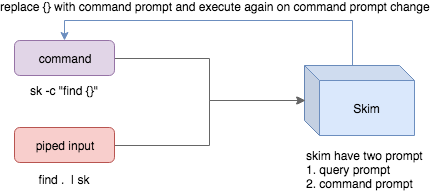
- Skim accepts two kinds of sources: Command output or piped input
- Skim has two kinds of prompts: A query prompt to specify the query pattern and a command prompt to specify the "arguments" of the command
-cis used to specify the command to execute and defaults toSKIM_DEFAULT_COMMAND-itells skim to open command prompt on startup, which will showc>by default.
To further narrow down the results returned by the command, press
Ctrl-Q to toggle interactive mode.
Executing external programs
You can configure key bindings to start external processes without leaving Skim (execute, execute-silent).
# Press F1 to open the file with less without leaving skim
# Press CTRL-Y to copy the line to clipboard and aborts skim (requires pbcopy)
sk --bind 'f1:execute(less -f {}),ctrl-y:execute-silent(echo {} | pbcopy)+abort'
Algorithms
Skim offers multiple algorithms, check the help or manpage for an exhaustive list. Among them are:
skim_v2, the default algorithm, loosely based onfzf's algorithmfrizbee, uses frizbee, the typo-resistant algorithm from the blink.cmp neovim pluginfzy, based on fzy's algorithm expanded for basic typo-resistancearinae, skim's newest algorithm, designed in-house with typo-resistance in mind, expanding on all the above to make typo-resistant matching feel more natural while keeping the per-item performance up to the best standards
Preview Window
This is a great feature of fzf that skim borrows. For example, we use 'ag' to
find the matched lines, and once we narrow down to the target lines, we want to
finally decide which lines to pick by checking the context around the line.
grep and ag have the option --context, and skim can make use of --context for
a better preview window. For example:
sk --ansi -i -c 'ag --color {q}' --preview "preview.sh {}"
(Note that preview.sh is a script to print the context given filename:lines:columns)
You get things like this:
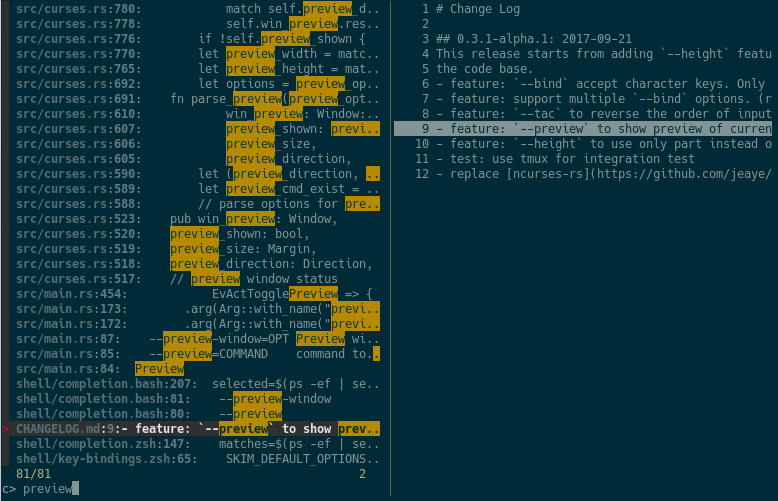
How does it work?
If the preview command is given by the --preview option, skim will replace the
{} with the current highlighted line surrounded by single quotes, call the
command to get the output, and print the output on the preview window.
Sometimes you don't need the whole line for invoking the command. In this case
you can use {}, {1..}, {..3} or {1..5} to select the fields. The
syntax is explained in the section Fields Support.
Lastly, you might want to configure the position of preview window with --preview-window:
--preview-window up:30%to put the window in the up position with height 30% of the total height of skim.--preview-window left:10:wrapto specify thewrapallows the preview window to wrap the output of the preview command.--preview-window wrap:hiddento hide the preview window at startup, later it can be shown by the actiontoggle-preview.
Fields support
Normally only plugin users need to understand this.
For example, you have the data source with the format:
<filename>:<line number>:<column number>
However, you want to search <filename> only when typing in queries. That
means when you type 21, you want to find a <filename> that contains 21,
but not matching line number or column number.
You can use sk --delimiter ':' --nth 1 to achieve this.
You can also use --with-nth to re-arrange the order of fields.
Range Syntax
<num>-- to specify thenum-th fields, starting with 1.start..-- starting from thestart-th fields and the rest...end-- starting from the0-th field, all the way toend-th field, includingend.start..end-- starting fromstart-th field, all the way toend-th field, includingend.
Use as a library
Skim can be used as a library in your Rust crates.
First, add skim into your Cargo.toml:
[dependencies]
skim = { version = "<version>", default-features = false, features = [..] }
Note on features:
- the cli feature is required to use skim as a cli, it should not be needed when using it as a library.
Basic usage
Then try to run this simple example:
extern crate skim;
use skim::prelude::*;
use std::io::Cursor;

pub fn main() {
    let options = SkimOptionsBuilder::default()
        .height("50%")
        .multi(true)
        .build()
        .unwrap();

    let input = "aaaaa\nbbbb\nccc".to_string();

    // `SkimItemReader` is a helper to turn any `BufRead` into a stream of `SkimItem`
    // `SkimItem` was implemented for `AsRef<str>` by default
    let item_reader = SkimItemReader::default();
    let items = item_reader.of_bufread(Cursor::new(input));

    // `run_with` would read and show items from the stream
    let selected_items = Skim::run_with(&options, Some(items))
        .map(|out| out.selected_items)
        .unwrap_or_else(|| Vec::new());

    for item in selected_items.iter() {
        println!("{}", item.output());
    }
}
Fine-grained usage
You can also gain fine-grained usage of skim as a library using tokio and async code, allowing you to dynamically interact with
Internal workings
Given an Option<SkimItemReceiver>, skim will read items accordingly, do its
job and bring us back the user selection including the selected items, the
query, etc. Note that:
SkimItemReceiveriscrossbeam::channel::Receiver<Arc<dyn SkimItem>>- If it is none, it will invoke the given command and read items from command output
- Otherwise, it will read the items from the (crossbeam) channel.
Trait SkimItem is provided to customize how a line could be displayed,
compared and previewed. It is implemented by default for AsRef<str>
Plus, SkimItemReader is a helper to convert a BufRead into
SkimItemReceiver (we can easily turn a File or String into BufRead),
so that you could deal with strings or files easily.
Check out more examples under the examples/ directory.
Benchmarks
This benchmarks runs the interactive interface in a tmux session, and waits for the UI to stabilize.

You can generate the graphs by using just bench-plot or running the recipe manually in GNU bash.
FAQ
How to ignore files?
Skim invokes find . to fetch a list of files for filtering. You can override
this by setting the environment variable SKIM_DEFAULT_COMMAND. For example:
$ SKIM_DEFAULT_COMMAND="fd --type f || git ls-tree -r --name-only HEAD || rg --files || find ."
$ sk
You could put it in your .bashrc or .zshrc if you like it to be default.
Some files are not shown in Vim plugin
If you use the Vim plugin and execute the :SK command, you may find some
of your files not shown.
As described in #3, in the Vim
plugin, SKIM_DEFAULT_COMMAND is set to the command by default:
let $SKIM_DEFAULT_COMMAND = "git ls-tree -r --name-only HEAD || rg --files || ag -l -g \"\" || find ."
This means files not recognized by git won't be shown. You can either override the
default with let $SKIM_DEFAULT_COMMAND = '' or locate the missing files by
yourself.
Differences from fzf
fzf is a command-line fuzzy finder written in Go and skim tries to implement a new one in Rust!
This project is written from scratch. Some decisions of implementation are different from fzf. For example:
skimhas an interactive mode.skimsupports pre-selection.- The fuzzy search algorithm is different.
More generally, skim's maintainers allow themselves some freedom of implementation.
The goal is to keep skim as feature-full as fzf is, but the command flags might differ.
How to contribute
Create new issues if you encounter any bugs or have any ideas. Pull requests are warmly welcomed.
Windows compatibility testing
A Vagrantfile is included to spin up a headless Windows Server 2022 Core VM for testing
Windows compatibility without needing a GUI. It requires VirtualBox
and Vagrant on your host (vagrant is included in the Nix dev
shell via flake.nix).
vagrant up          # First boot: downloads the box and provisions (~15–20 min)
ssh -p 2222 vagrant@localhost   # Password: vagrant
Inside the VM, the project root is mounted at C:\vagrant:
cd C:\vagrant
cargo build
cargo test
Subsequent boots are fast — provisioning only runs once:
vagrant halt        # Stop the VM
vagrant up          # Resume
vagrant destroy     # Delete the VM entirely
Troubleshooting
To troubleshoot what's happening, you can set the environment variable SKIM_LOG or the flag --log-level to either debug or even trace, and set the environment variable SKIM_LOG_FILE or the flag --log-file to a path. You can then read those logs during or after the execution to better understand what's happening. Don't hesitate to add those logs to an issue if you need help.
No line feed issues with nix, FreeBSD, termux
If you encounter display issues like:
$ for n in {1..10}; do echo "$n"; done | sk
  0/10 0/0.> 10/10  10  9  8  7  6  5  4  3  2> 1
For example
You need to set TERMINFO or TERMINFO_DIRS to the path of a correct terminfo database path
For example, with termux, you can add this in your bashrc:
export TERMINFO=/data/data/com.termux/files/usr/share/terminfo
Benchmarks
Interactive benchmark (cli)
The cli bench benchmarks skim (or any compatible binary) against other versions or fzf by running the interactive interface inside a tmux session and polling the status line until the matched count stabilises. This is by no means a precise or foolproof measurement, but it has the added benefit of benchmarking against fzf and of providing resource metrics (peak RSS and CPU).
cargo bench --bench cli -- run                              # defaults: sk, 1 M items, query "test"
cargo bench --bench cli -- run sk -n 500000 -q foo              # bare name resolved via $PATH
cargo bench --bench cli -- run ./old/sk ./new/sk -r 5           # compare two binaries, 5 runs each
cargo bench --bench cli -- run sk -f input.txt -q search        # use an existing file
cargo bench --bench cli -- generate -f testdata.txt -n 2000000       # generate input file and exit
cargo bench --bench cli -- run sk --perf                            # record perf data (auto-named file)
cargo bench --bench cli -- run sk --strace                            # record strace data (auto-named file)
cargo bench --bench cli -- run sk -p perf.data                 # record perf data to perf.data
cargo bench --bench cli -- run sk -j                            # JSON output
cargo bench --bench cli -- run sk -r 3 -- --tiebreak=index     # pass extra flags to sk
Binary names are resolved to absolute paths via which before use, so bare names like sk or fzf work as long as they are on $PATH.
Criterion benchmarks
Criterion benchmarks are available to measure skim's performance more precisely.
To run them, you need to generate input data using cargo bench --bench cli -- -g benches/fixtures/10M.txt -n 10000000 && cargo bench --bench cli -- -g benches/fixtures/1M.txt -n 1000000, then run cargo bench -j 1.
These will run for several minutes.