|
|
||
|---|---|---|
| build | ||
| cmd/peco | ||
| keyseq | ||
| .gitignore | ||
| .travis.yml | ||
| action.go | ||
| action_test.go | ||
| Changes | ||
| config.go | ||
| config_darwin.go | ||
| config_posix.go | ||
| config_test.go | ||
| config_windows.go | ||
| ctx.go | ||
| filter.go | ||
| hub.go | ||
| hub_test.go | ||
| input.go | ||
| keymap.go | ||
| keymap_test.go | ||
| layout.go | ||
| layout_test.go | ||
| LICENSE | ||
| matchers.go | ||
| matchers_test.go | ||
| peco_test.go | ||
| reader.go | ||
| reader_test.go | ||
| README.md | ||
| screen.go | ||
| selection.go | ||
| tty_bsd.go | ||
| tty_posix.go | ||
| tty_windows.go | ||
| view.go | ||
| view_test.go | ||
| wercker.yml | ||

peco
Simplistic interactive filtering tool
Description
peco (pronounced peh-koh) is based on a python tool, percol. percol was darn useful, but I wanted a tool that was a single binary, and forget about python. peco is written in Go, and therefore you can just grab the binary releases and drop it in your $PATH.
peco can be a great tool to filter stuff like logs, process stats, find files, because unlike grep, you can type as you think and look through the current results.
For basic usage, continue down below. For more cool elaborate usage samples, please see the wiki, and if you have any other tricks you want to share, please add to it!
Demo
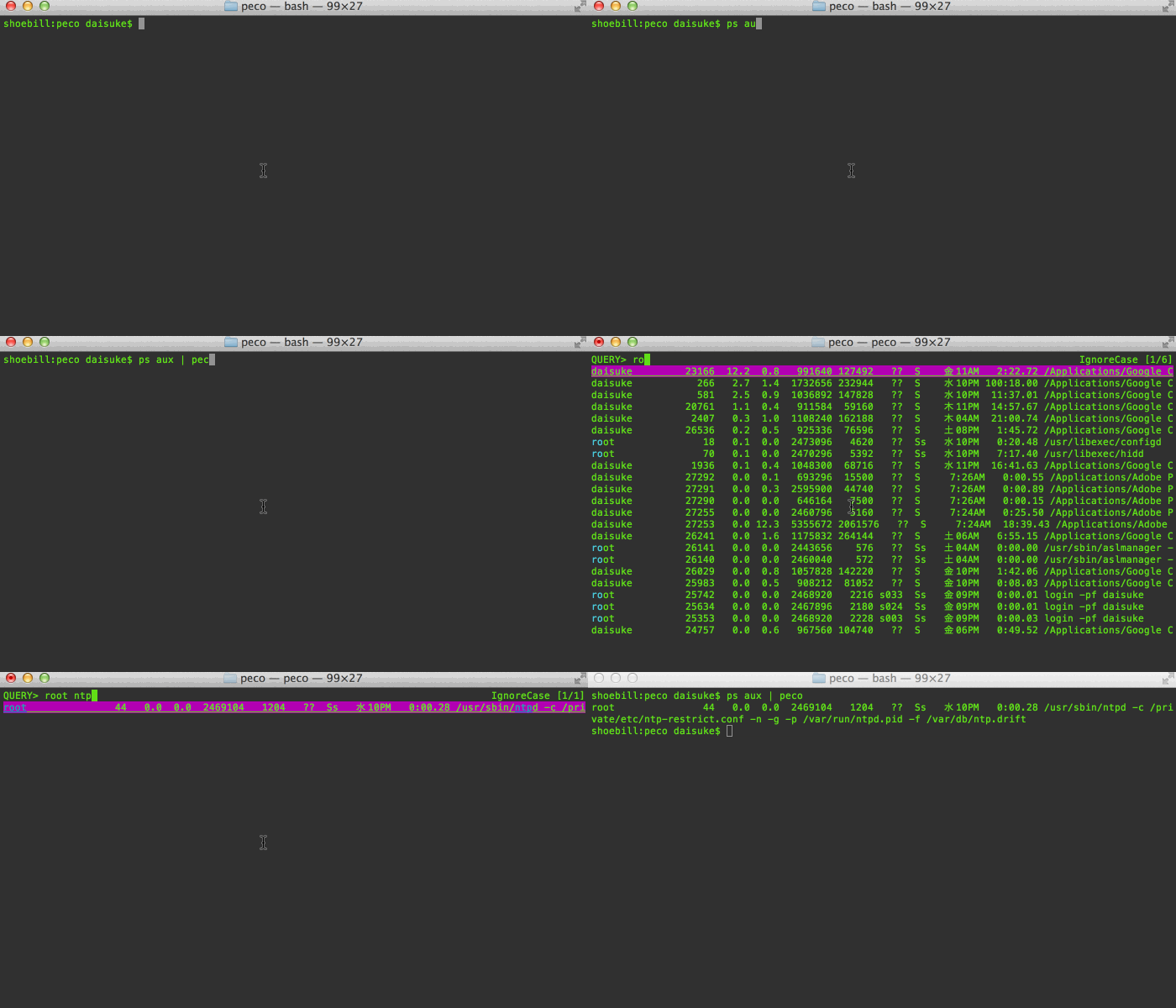
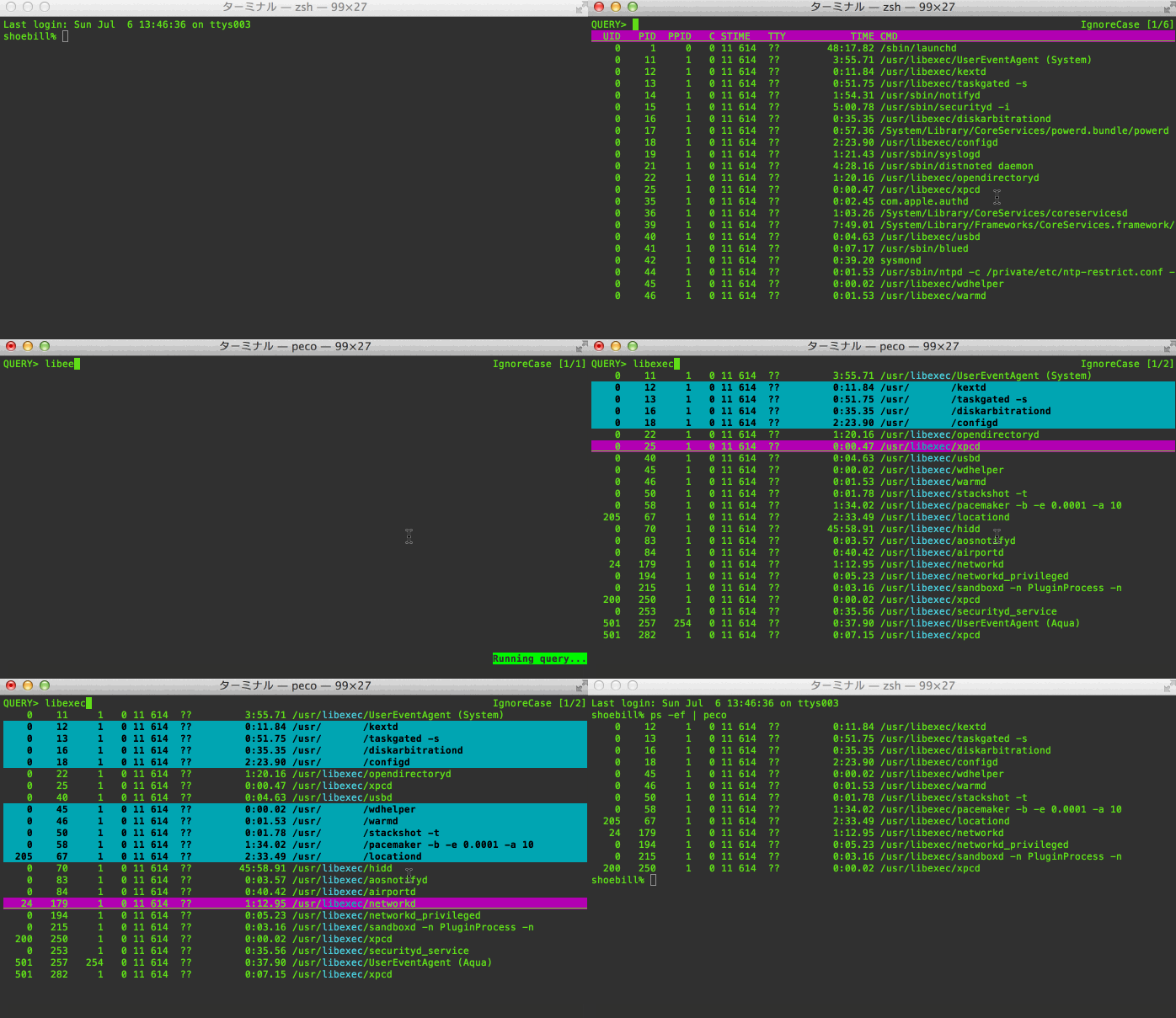
Demos speak more than a thousand words! Here's me looking for a process on my mac. As you can see, you can page through your results, and you can keep changing the query:
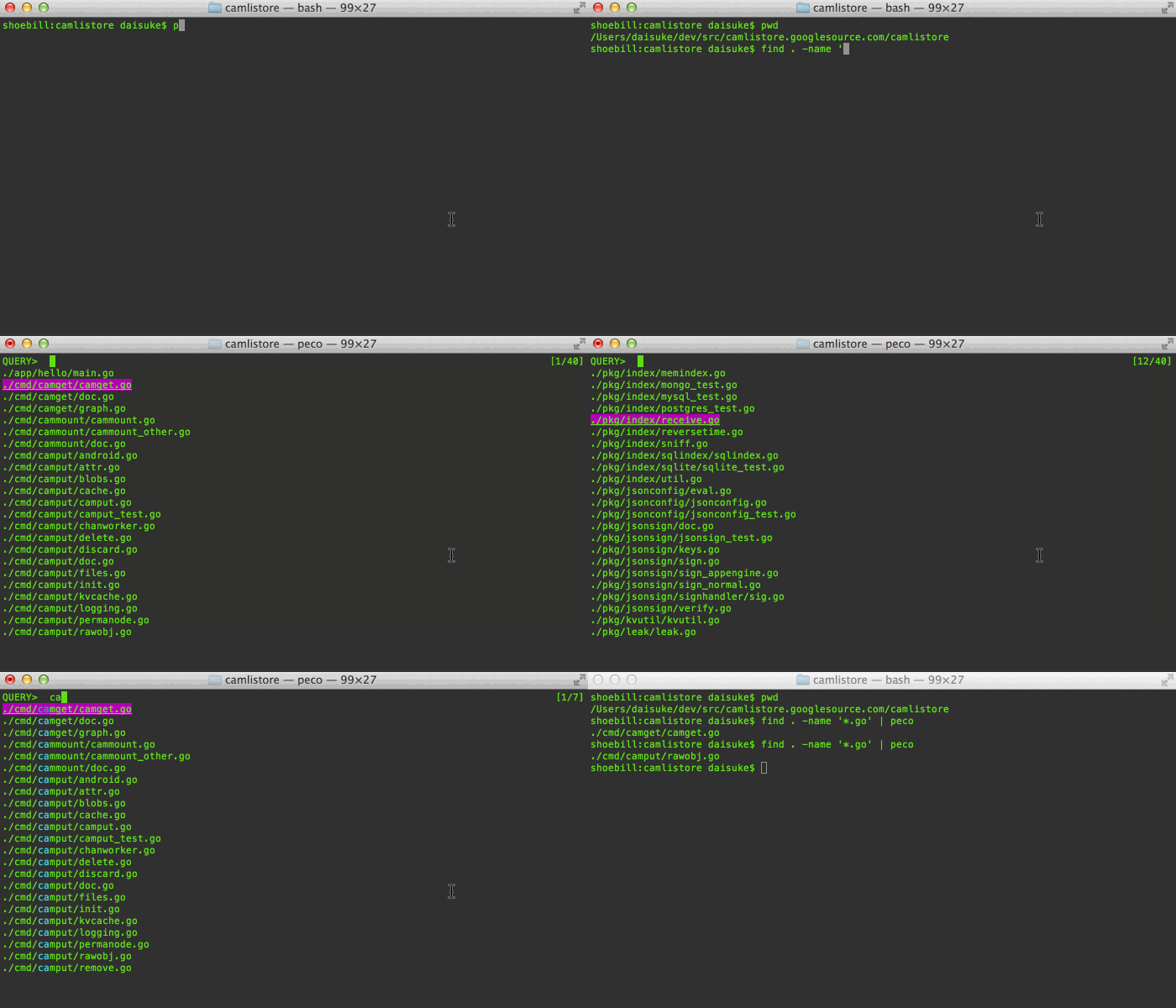
Here's me trying to figure out which file to open:
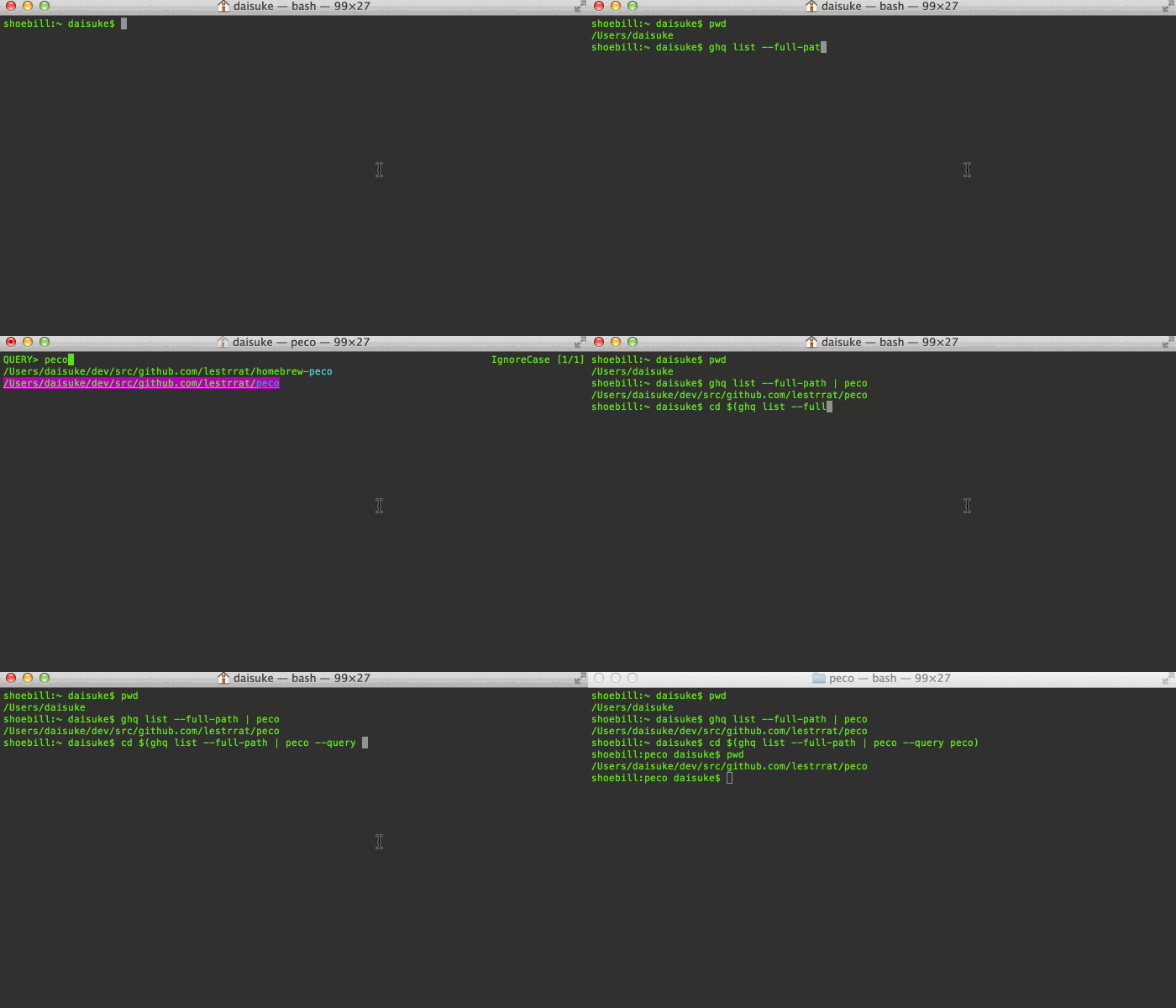
When you combine tools like zsh, peco, and ghq, you can make managing/moving around your huge dev area a piece of cake! (this example doesn't use zsh functions so you can see what I'm doing)
Features
Incremental Search
Search results are filtered as you type. This is great to drill down to the line you are looking for
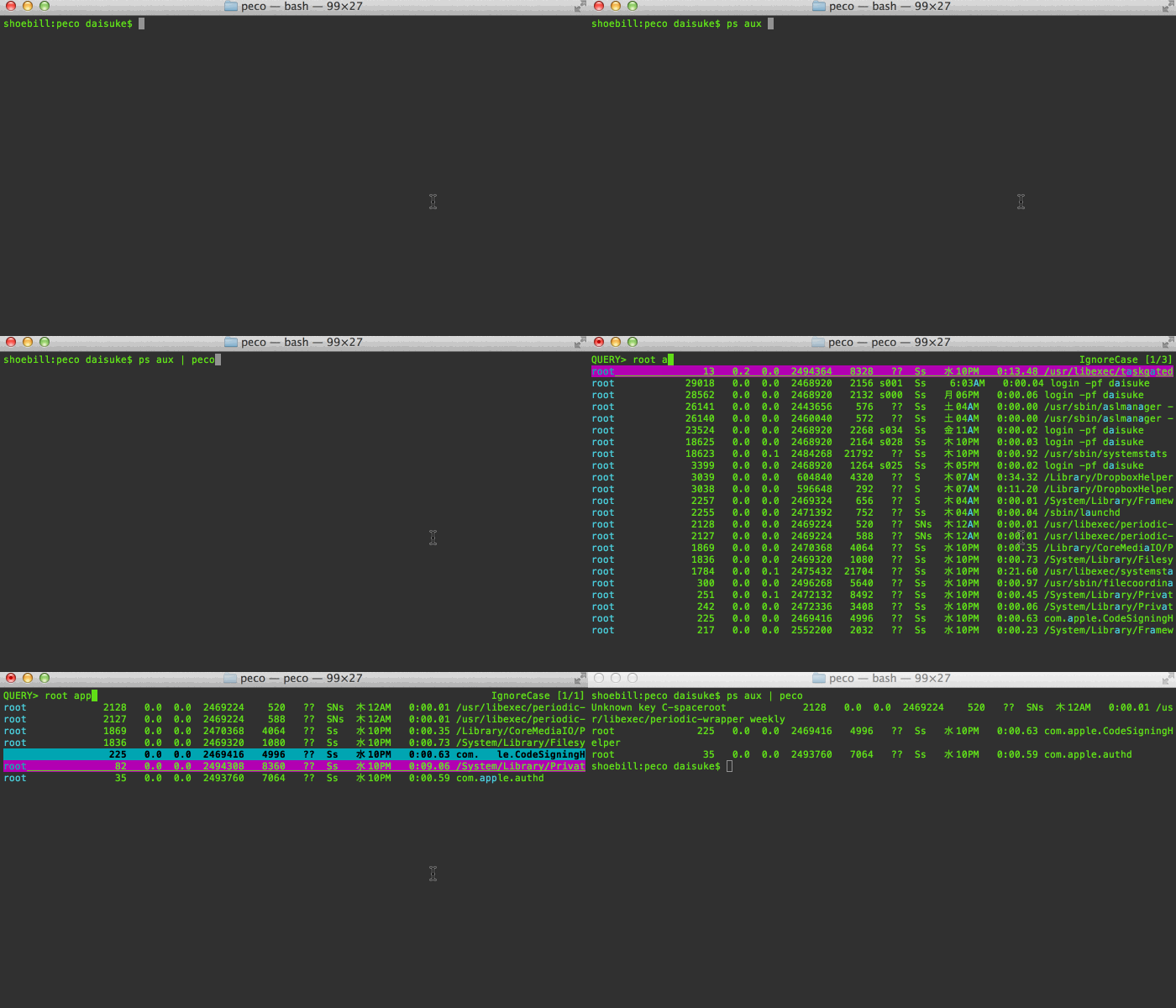
Multiple terms turn the query into an "AND" query:
When you find that line that you want, press enter, and the resulting line is printed to stdout, which allows you to pipe it to other tools
Select Multiple Lines
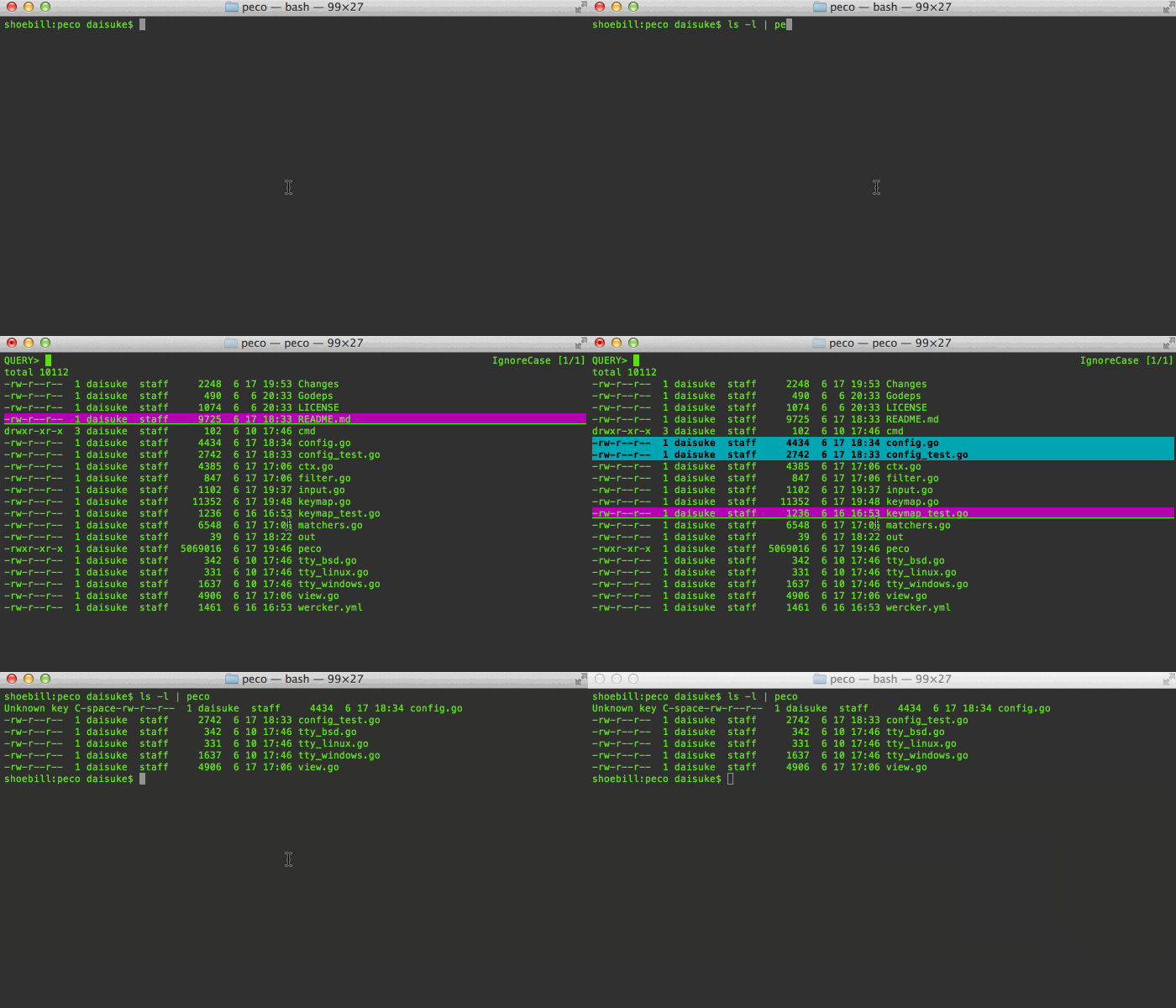
You can select multiple lines!
Select Range Of Lines
Not only can you select multiple lines one by one, you can select a range of lines (Note: The ToggleRangeMode action is not enabled by default. You need to put a custom key binding in your config file)
Select Matchers
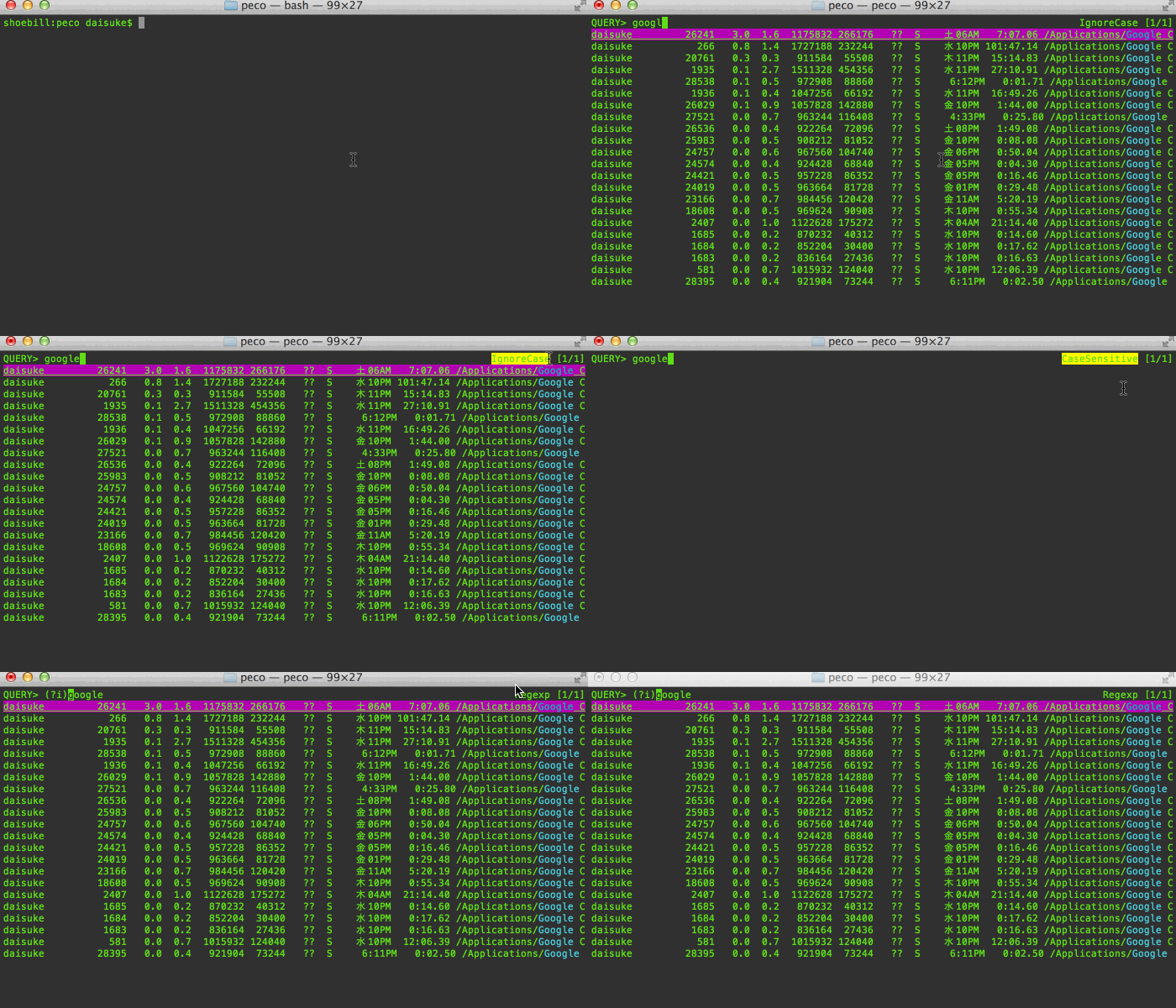
Different types of matchers are available. Default is case-insensitive matcher, so lines with any case will match. You can toggle between IgnoreCase, CaseSensitive, SmartCase and RegExp matchers.
The SmartCase matcher uses case-insensitive matching when the all of the queries iare lower case, and case-sensitive matching otherwise.
The RegExp matcher allows you to use any valid regular expression to match lines
Selectable Layout
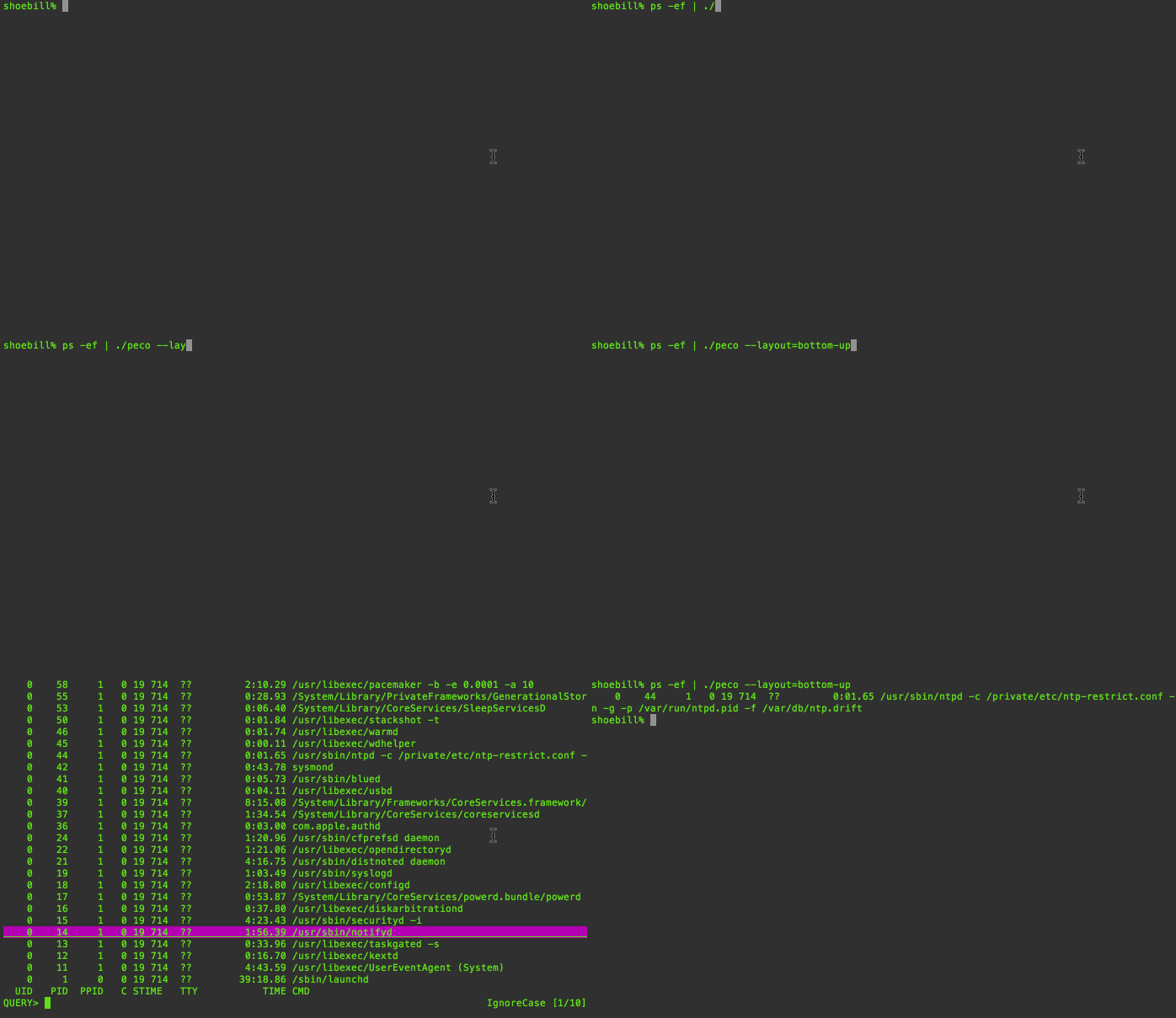
As of v0.2.5, if you would rather not move your eyes off of the bottom of the screen, you can change the screen layout by either proviging the --layout=bottom-up command line option, or set the Layout variable in your configuration file
Works on Windows!
I have been told that peco even works on windows :) Look ma! I'm not lying!

Installation
Just want the binary?
Go to the releases page, find the version you want, and download the zip file. Unpack the zip file, and put the binary to somewhere you want (on UNIX-y systems, /usr/local/bin or the like). Make sure it has execution bits turned on. Yes, it is a single binary! You can put it anywhere you want :)
THIS IS THE RECOMMENDED WAY (except for OS X homebrew users)
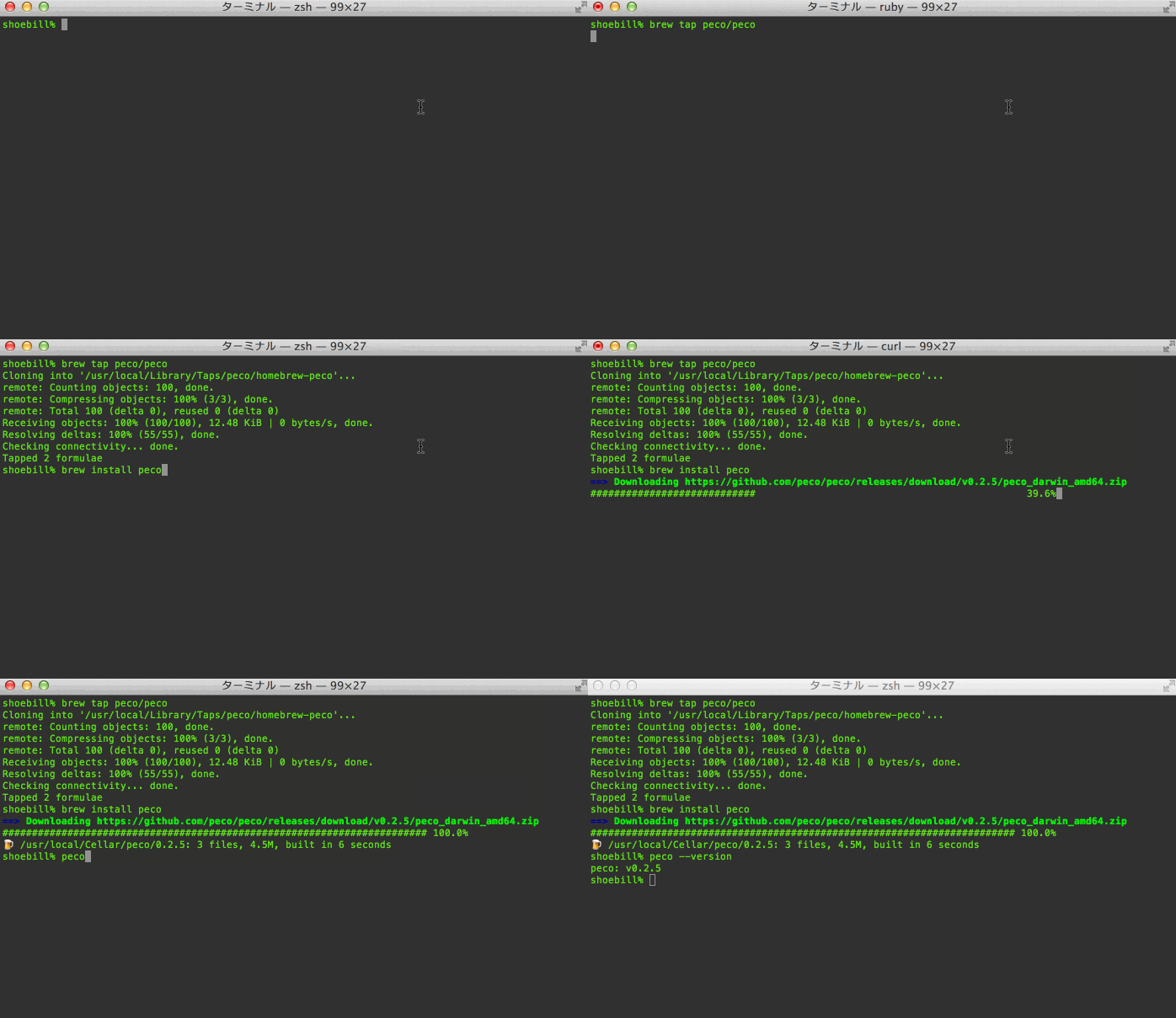
Mac OS X / Homebrew
If you're on OS X and want to use homebrew, use my custom tap:
brew tap peco/peco
brew install peco
Windows (Chocolatey NuGet Users)
There's a third-party peco package available for Chocolatey NuGet.
C:\> choco install peco
go get
If you want to go the Go way (install in GOPATH/bin) and just want the command:
go get github.com/peco/peco/cmd/peco
Command Line Options
-h, --help
Display a help message
--version
Display the version of peco
--query
Specifies the default query to be used upon startup. This is useful for scripts and functions where you can figure out before hand what the most likely query string is.
--rcfile
Pass peco a configuration file, which currently must be a JSON file. If unspecified it will try a series of files by default. See Configuration File for the actual locationes searched.
-b, --buffer-size
Limits the buffer size to num. This is an important feature when you are using peco against a possibbly infinite stream, as it limits the number of lines that peco holds at any given time, preventing it from exhausting all the memory. By default the buffer size is unlimited.
--null
WARNING: EXPERIMENTAL. This feature will probably stay, but the option name may change in the future.
Changes how peco interprets incoming data. When this flag is set, you may insert NUL ('\0') characters in your input. Anything before the NUL character is treated as the string to be displaed by peco and is used for matching against user query. Anything after the NUL character is used as the "result": i.e., when peco is about to exit, it displays this string instead of the original string displayed.
Here's a simple example of how to use this feature
--no-ignore-case
This option has been DEPRECATED. Use --initial-matcher instead.
By default peco starts in case insensitive mode. When this option is specified, peco will start in case sensitive mode. This can be toggled while peco is still in session.
--initial-index
Specifies the initial line position upon start up. E.g. If you want to start out with the second line selected, set it to "1" (because the index is 0 based)
--initial-matcher IgnoreCase|CaseSensitive|SmartCase|Regexp
Specifies the initial matcher to use upon start up. You should specify the name of the macher like IgnoreCase, CaseSensitive, SmartCase and Regexp. Default is IgnoreCase.
--prompt
Specifies the query line's prompt string. When specified, takes precedence over the configuration file's Prompt section. The default value is QUERY>
--layout top-down|bottom-up
Specifies the display layout. Default is top-down, where query prompt is at the top, followed by the list, then the system status message line. bottom-up changes this to the list first (displayed in reverse order), the query prompt, and then the system status message line.
For percol users, --layout=bottom-up is almost equivalent of --prompt-bottom --result-bottom-up.
Configuration File
peco by default consults a few locations for the config files.
- Location specified in --rcfile. If this doesn't exist, peco complains and exits
- $XDG_CONFIG_HOME/config.json
- $HOME/.config/peco/config.json
- for each directories listed in $XDG_CONFIG_DIRS, $DIR/peco/config.json
- If all else fails, $HOME/.peco/config.json
Below are configuration sections that you may specify in your config file:
Keymaps
Example:
{
    "Keymap": {
        "M-v": "peco.ScrollPageUp",
        "C-v": "peco.ScrollPageDown",
        "C-x,C-c": "peco.Cancel"
    }
}
Key sequences
As of v0.2.0, you can use a list of keys (separated by comma) to register an action that is associated with a key sequence (instead of a single key). Please note that if there is a conflict in the key map, the longest sequence always wins. So In the above example, if you add another sequence, say, C-x,C-c,C-c, then the above peco.Cancel will never be invoked.
Combined actions
As of v0.2.1, you can create custom combined actions. For example, if you find yourself repeatedly needing to select 4 lines out of the list, you may want to define your own action like this:
{
    "Action": {
        "foo.SelectFour": [
            "peco.ToggleRangeMode",
            "peco.SelectDown",
            "peco.SelectDown",
            "peco.SelectDown",
            "peco.ToggleRangeMode"
        ]
    },
    "Keymap": {
        "M-f": "foo.SelectFour"
    }
}
This creates a new combined action foo.SelectFour (the format of the name is totally arbitrary, I just like to put namespaces), and assigns that action to M-f. When it's fired, it toggles the range selection mode and highlights 4 lines, and then goes back to waiting for your input.
As a similar example, a common idiom in emacs is that C-c C-c means "take the contents of this buffer and accept it", whatever that means. This adds exactly that keybinding:
{
    "Action": {
        "selectAllAndFinish": [
            "peco.SelectAll",
            "peco.Finish"
        ]
    },
    "Keymap": {
        "C-c,C-c": "selectAllAndFinish"
    }
}
Available keys
Since v0.1.8, in addition to values below, you may put a M- prefix on any
key item to use Alt/Option key as a mask.
| Name | Notes |
|---|---|
| C-a ... C-z | Control + whatever character |
| C-1 ... C-8 | Control + 1..8 |
| C-[ | |
| C-] | |
| C-~ | |
| C-_ | |
| C-\\ | Note that you need to escape the backslash |
| C-/ | |
| Esc | |
| Tab | |
| Insert | |
| Delete | |
| Home | |
| End | |
| Pgup | |
| Pgdn | |
| ArrowUp | |
| ArrowDown | |
| ArrowLeft | |
| ArrowRight |
Key workarounds
Some keys just... don't map correctly / too easily for various reasons. Here, we'll list possible workarounds for key sequences that are often asked for:
| You want this | Use this instead | Notes |
|---|---|---|
| Shift+Tab | M-[,Z | Verified on OS X |
Available actions
| Name | Notes |
|---|---|
| peco.ForwardChar | Move caret forward 1 character |
| peco.BackwardChar | Move caret backward 1 character |
| peco.ForwardWord | Move caret forward 1 word |
| peco.BackwardWord | Move caret backward 1 word |
| peco.BeginningOfLine | Move caret to the beginning of line |
| peco.EndOfLine | Move caret to the end of line |
| peco.EndOfFile | Delete one character forward, otherwise exit from peco with failure status |
| peco.DeleteForwardChar | Delete one character forward |
| peco.DeleteBackwardChar | Delete one character backward |
| peco.DeleteForwardWord | Delete one word forward |
| peco.DeleteBackwardWord | Delete one word backward |
| peco.KillEndOfLine | Delete the characters under the cursor until the end of the line |
| peco.DeleteAll | Delete all entered characters |
| peco.RefreshScreen | Redraws the screen. Note that this effectively re-runs your query |
| peco.SelectPreviousPage | (DEPRECATED) Alias to ScrollPageUp |
| peco.SelectNextPage | (DEPRECATED) Alias to ScrollPageDown |
| peco.ScrollPageDown | Moves the selected line cursor for an entire page, downwards |
| peco.ScrollPageUp | Moves the selected line cursor for an entire page, upwards |
| peco.SelectUp | Moves the selected line cursor to one line above |
| peco.SelectDown | Moves the selected line cursor to one line below |
| peco.SelectPrevious | (DEPRECATED) Alias to SelectUp |
| peco.SelectNext | (DEPRECATED) Alias to SelectDown |
| peco.ToggleSelection | Selects the current line, and saves it |
| peco.ToggleSelectionAndSelectNext | Selects the current line, saves it, and proceeds to the next line |
| peco.ToggleRangeMode | Start selecting by range, or append selecting range to selections |
| peco.CancelRangeMode | Finish selecting by range and cancel range selection |
| peco.RotateMatcher | Rotate between matchers (by default, ignore-case/no-ignore-case) |
| peco.Finish | Exits from peco with success status |
| peco.Cancel | Exits from peco with failure status, or cancel select mode |
Default Keymap
Note: If in case below keymap seems wrong, check the source code in keymap.go (look for NewKeymap).
| Key | Action |
|---|---|
| Esc | peco.Cancel |
| Ctrl-c | peco.Cancel |
| Enter | peco.Finish |
| Ctrl-f | peco.ForwardChar |
| Ctrl-a | peco.BeginningOfLine |
| Ctrl-b | peco.BackwardChar |
| Ctrl-d | peco.DeleteForwardChar |
| Ctrl-e | peco.EndOfLine |
| Ctrl-k | peco.KillEndOfLine |
| Ctrl-l | peco.RefreshScreen |
| Ctrl-n | peco.SelectDown |
| Ctrl-p | peco.SelectUp |
| Ctrl-u | peco.KillBeginOfLine |
| Ctrl-r | peco.RotateMatcher |
| Ctrl-w | peco/DeleteBackwardWord |
| Ctrl-space | peco.ToggleSelectionAndSelectNext |
| ArrorUp | peco.SelectPrevious |
| ArrowDown | peco.SelectNext |
| ArrowLeft | peco.SelectPreviousPage |
| ArrowRight | peco.SelectNextPage |
| Backspace | peco.DeleteBackwardChar |
Styles
For now, styles of following 5 items can be customized in config.json.
{
    "Style": {
        "Basic": ["on_default", "default"],
        "SavedSelection": ["bold", "on_yellow", "white"],
        "Selected": ["underline", "on_cyan", "black"],
        "Query": ["yellow", "bold"],
        "Matched": ["red", "on_blue"]
    }
}
Basicfor not selected linesSavedSelectionfor lines of saved selectionSelectedfor a currently selecting lineQueryfor a query lineMatchedfor a query matched word
Foreground Colors
"black"fortermbox.ColorBlack"red"fortermbox.ColorRed"green"fortermbox.ColorGreen"yellow"fortermbox.ColorYellow"blue"fortermbox.ColorBlue"magenta"fortermbox.ColorMagenta"cyan"fortermbox.ColorCyan"white"fortermbox.ColorWhite
Background Colors
"on_black"fortermbox.ColorBlack"on_red"fortermbox.ColorRed"on_green"fortermbox.ColorGreen"on_yellow"fortermbox.ColorYellow"on_blue"fortermbox.ColorBlue"on_magenta"fortermbox.ColorMagenta"on_cyan"fortermbox.ColorCyan"on_white"fortermbox.ColorWhite
Attributes
"bold"for fg:termbox.AttrBold"underline"for fg:termbox.AttrUnderline"reverse"for fg:termbox.AttrReverse"on_bold"for bg:termbox.AttrBold(this attribute actually makes the background blink on some platforms/environments, e.g. linux console, xterm...)
CustomMatcher
This is an experimental feature. Please note that some details of this specificaiton may change
By default peco comes with IgnoreCase, CaseSensitive, SmartCase and Regexp matchers, but since v0.1.3, it is possible to create your own custom matcher.
The matcher will be executed via Command.Run() as an external process, and it will be passed the query values in the command line, and the original unaltered buffer is passed via os.Stdin. Your matcher must perform the matching, and print out to os.Stdout matched lines. Note that currently there is no way to specify where in the line the match occurred. Note that the matcher does not need to be a go program. It can be a perl/ruby/python/bash script, or anything else that is executable.
Once you have a matcher, you must specify how the matcher is spawned:
{
    "CustomMatcher": {
        "MyMatcher": [ "/path/to/my-matcher", "$QUERY" ]
    }
}
Elements in the CustomMatcher section are string keys to array of program arguments. The special token $QUERY will be replaced with the unaltered query as the user typed in (i.e. multiple-word queries will be passed as a single string). You may pass in any other arguments in this array.
You may specify as many matchers as you like.
Examples
- An example of a simple perl regexp matcher
- An example using migemogrep Japanese grep using latin-1 chars
Prompt
You can change the query line's prompt, which is QUERY> by default.
{
    "Prompt": "[peco]"
}
InitialMatcher
Specifies the matcher name to start peco with. You should specify the name of the matcher, such as IgnoreCase, CaseSensitive, SmartCase and Regexp
Note: Matcher key has been deprecated in favor of InitialMatcher. Matcher will be unavailable in peco 0.3.0
Layout
See --layout.
Hacking
First, fork this repo, and get your clone locally.
- Make sure you have go 1.x, with GOPATH appropriately set
- Run
go get github.com/jessevdk/go-flags - Run
go get github.com/mattn/go-runewidth - Run
go get github.com/nsf/termbox-go
Then from the root of this repository run:
go build cmd/peco/peco.go
This will create a peco binary in the local directory.
TODO
Test it. In doing so, we may change the repo structure
Implement all(?) of the original percol options
AUTHORS
- Daisuke Maki (lestrrat)
- mattn
- syohex
CONTRIBUTORS
- HIROSE Masaaki
- Joel Segerlind
- Lukas Lueg
- Mitsuoka Mimura
- Ryota Arai
- Shinya Ohyanagi
- Takashi Kokubun
- Yuya Takeyama
- cho45
- cubicdaiya
- kei_q
- negipo
- sona_tar
- sugyan
- swdyh
- MURAOKA Taro (kaoriya/koron), for aho-corasick search
- taichi, for the gif working on Windows
- uobikiemukot
- Samuel Lemaitre
- Yousuke Ushiki
- Linda_pp
Notes
Obviously, kudos to the original percol: https://github.com/mooz/percol Much code stolen from https://github.com/mattn/gof