mirror of
https://github.com/peco/peco.git
synced 2026-09-10 07:16:29 -04:00

998 lines
36 KiB
Markdown
998 lines
36 KiB
Markdown
# peco
|
|
|
|
Simplistic interactive filtering tool
|
|
|
|
*NOTE*: If you are viewing this on GitHub, this document refers to the state of `peco` in whatever current branch you are viewing, _not_ necessarily the state of a currently released version. Please make sure to checkout the [Changes](./Changes) file for features and changes.
|
|
|
|
> If you use peco, please consider sponsoring the authors of this project from the "Sponsor" button on the project page at https://github.com/peco/peco. Sponsorship plans start at $1 :)
|
|
|
|
# Description
|
|
|
|
`peco` (pronounced *peh-koh*) is based on a python tool, [percol](https://github.com/mooz/percol). `percol` was darn useful, but I wanted a tool that was a single binary, and forget about python. `peco` is written in Go, and therefore you can just grab [the binary releases](https://github.com/peco/peco/releases) and drop it in your $PATH.
|
|
|
|
`peco` can be a great tool to filter stuff like logs, process stats, find files, because unlike grep, you can type as you think and look through the current results.
|
|
|
|
For basic usage, continue down below. For more cool elaborate usage samples, [please see the wiki](https://github.com/peco/peco/wiki/Sample-Usage), and if you have any other tricks you want to share, please add to it!
|
|
|
|
## Demo
|
|
|
|
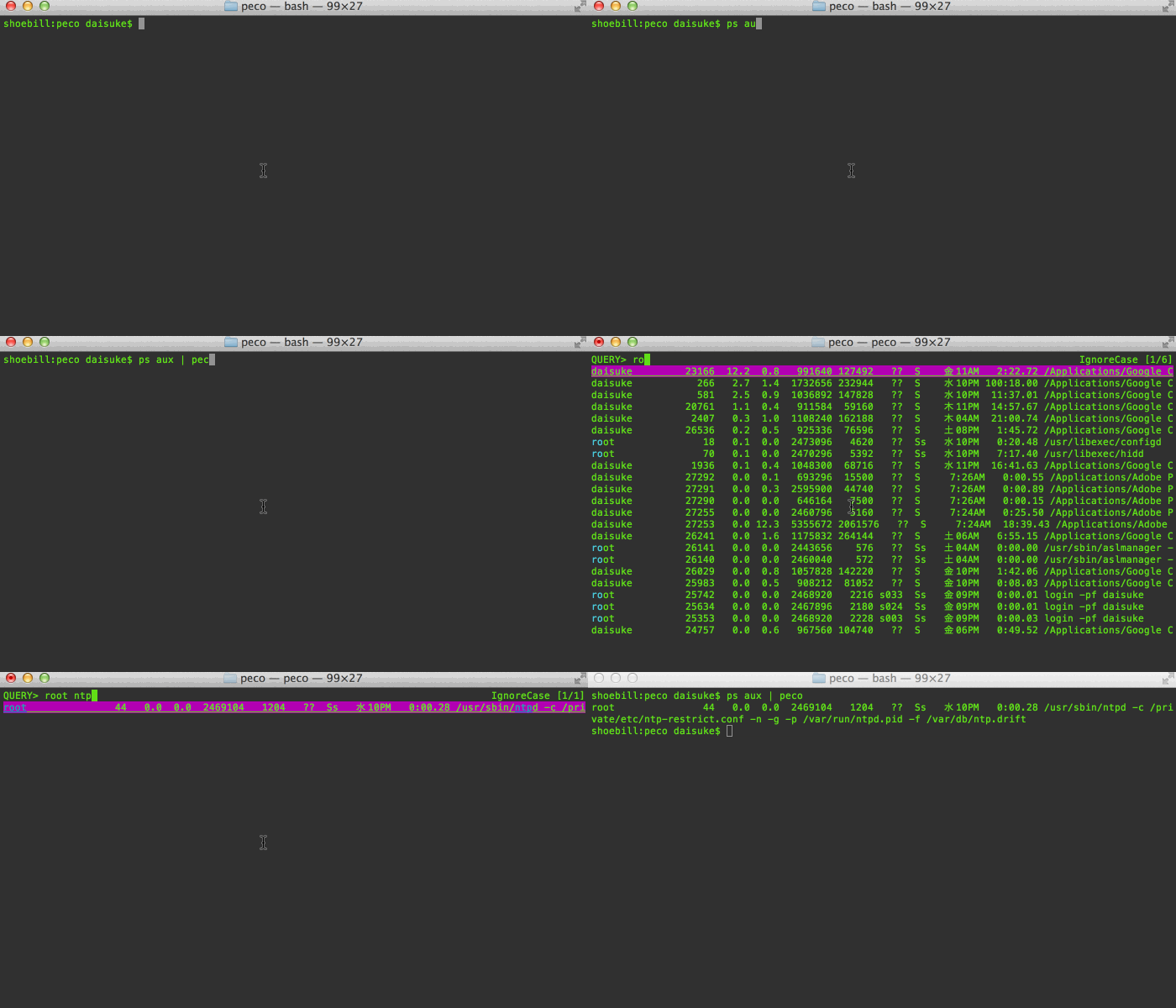
Demos speak more than a thousand words! Here's me looking for a process on my mac. As you can see, you can page through your results, and you can keep changing the query:
|
|
|
|
|
|
|
|
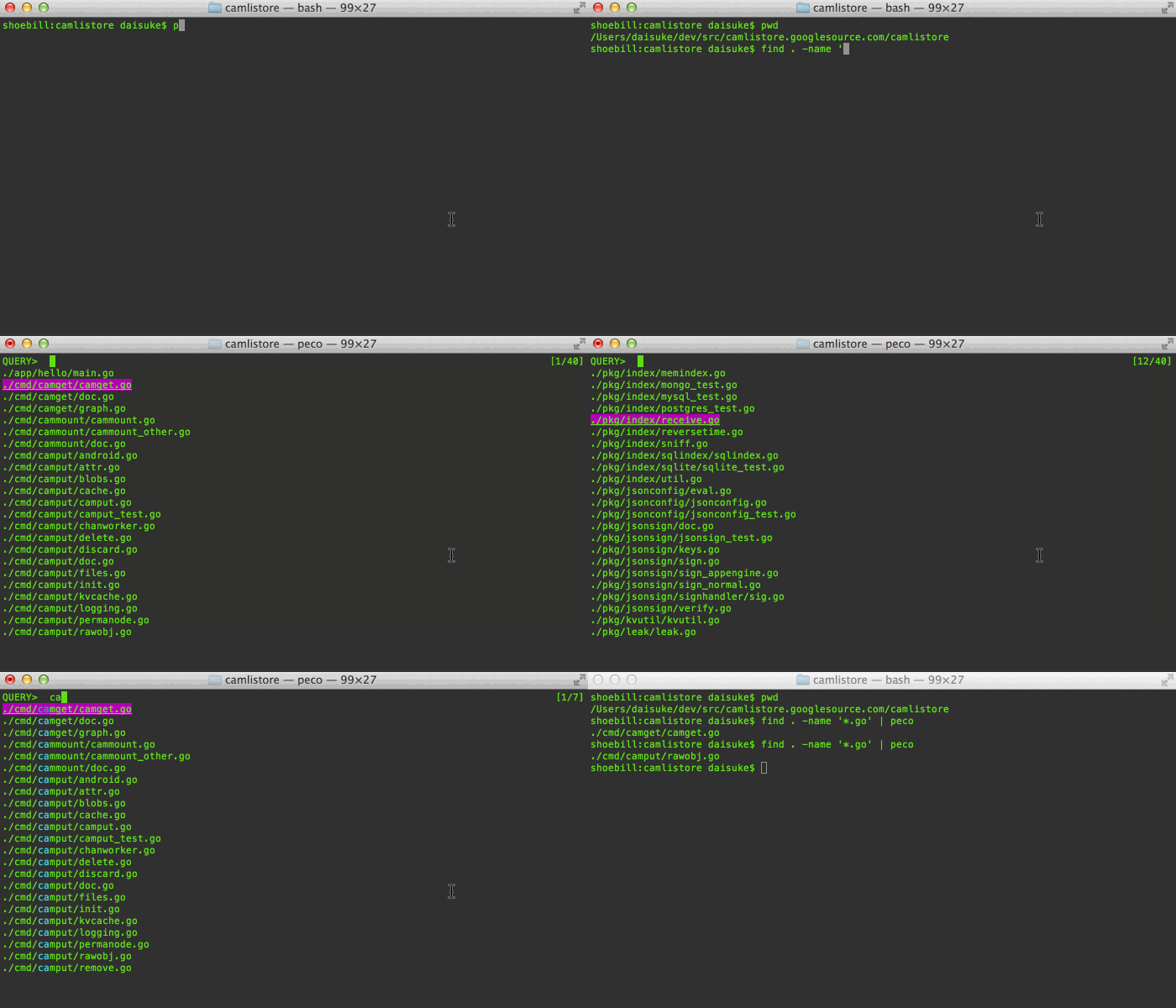
Here's me trying to figure out which file to open:
|
|
|
|
|
|
|
|
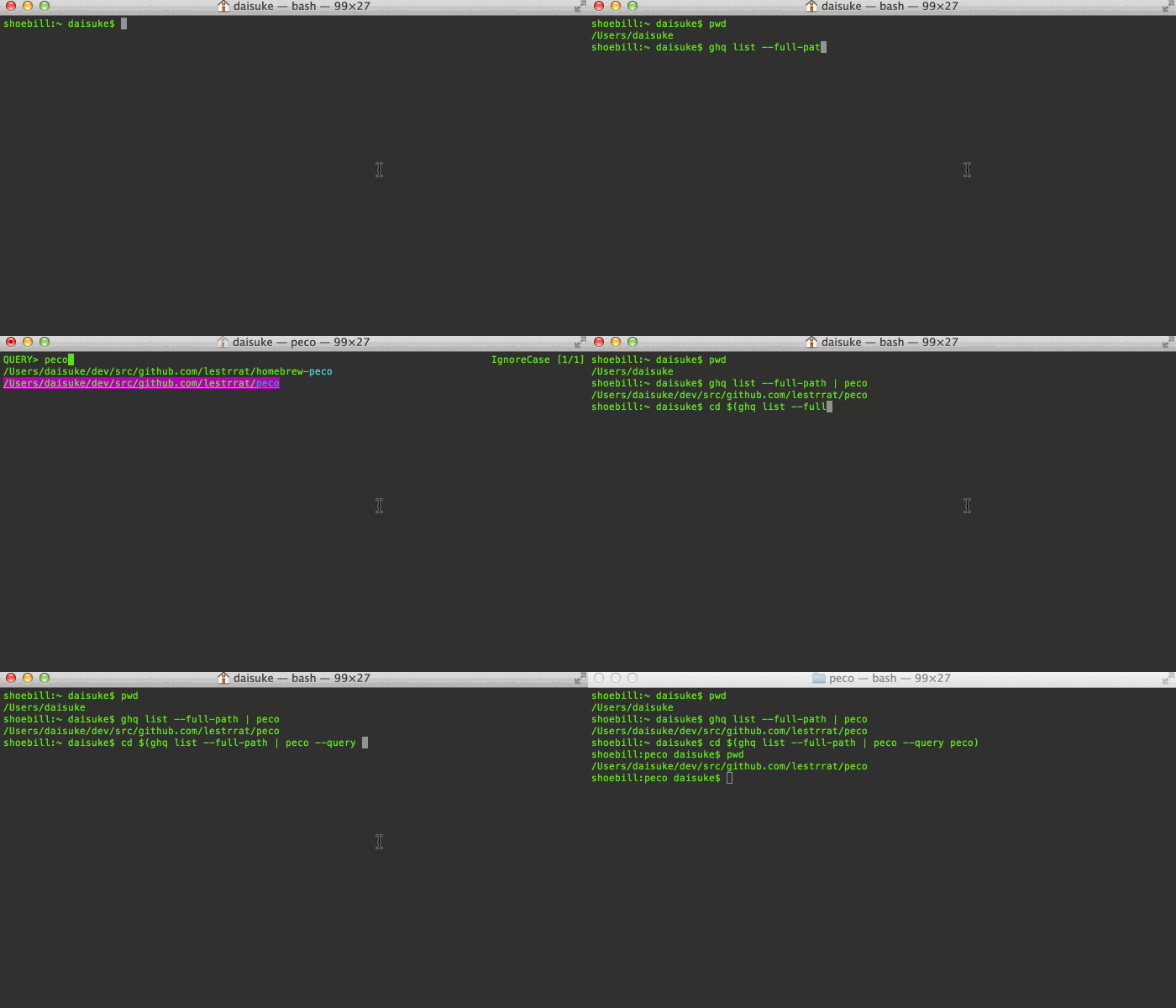
When you combine tools like zsh, peco, and [ghq](https://github.com/motemen/ghq), you can make managing/moving around your huge dev area a piece of cake! (this example doesn't use zsh functions so you can see what I'm doing)
|
|
|
|
|
|
|
|
|
|
# Features
|
|
|
|
## Incremental Search
|
|
|
|
Search results are filtered as you type. This is great to drill down to the
|
|
line you are looking for
|
|
|
|
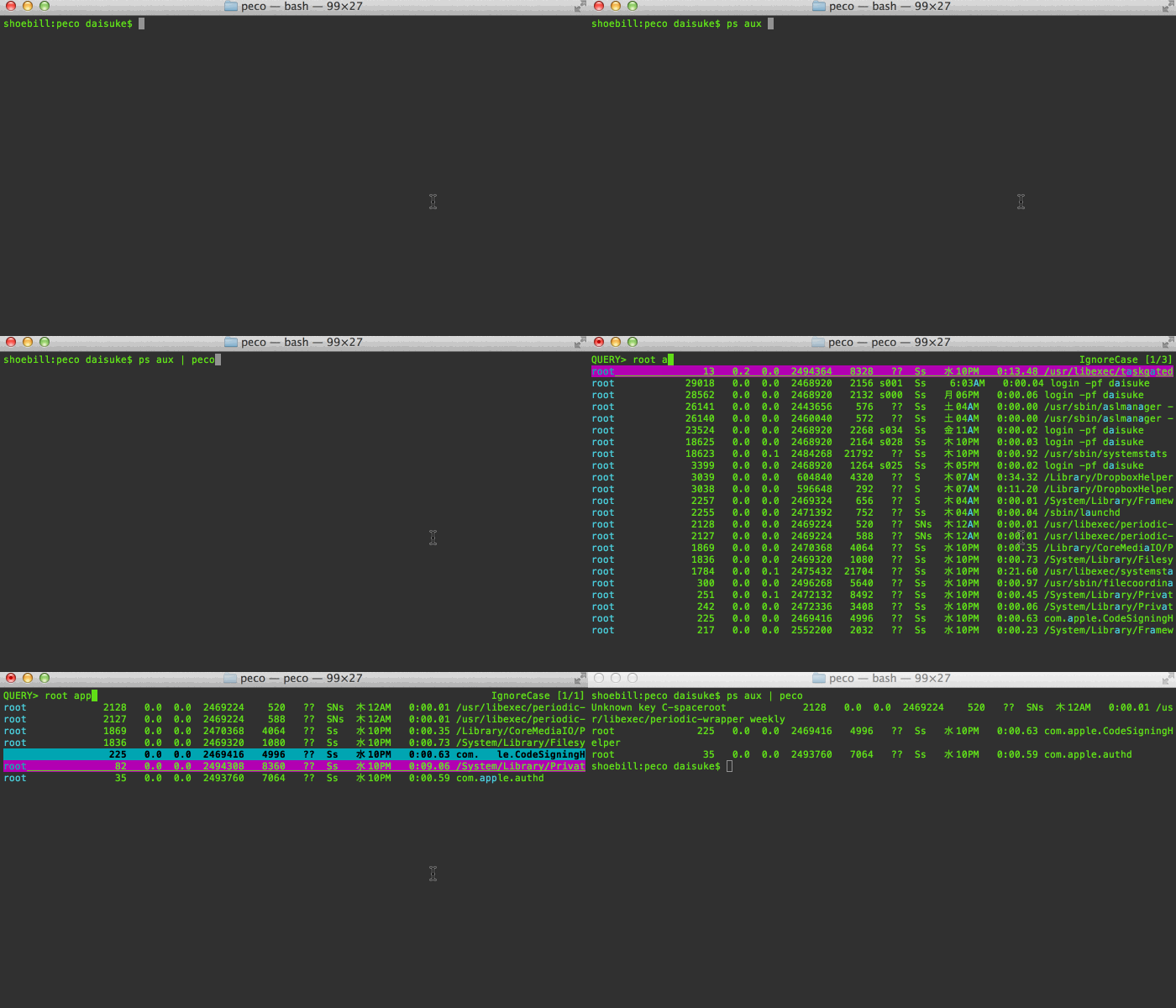
Multiple terms turn the query into an "AND" query:
|
|
|
|
|
|
|
|
When you find that line that you want, press enter, and the resulting line
|
|
is printed to stdout, which allows you to pipe it to other tools
|
|
|
|
## Negative Matching
|
|
|
|
You can exclude lines from the results by prefixing a term with `-`. For example, the query `SSO -tests -javadoc` shows lines matching "SSO" that do NOT contain "tests" or "javadoc".
|
|
|
|
| Query | Meaning |
|
|
|-------|---------|
|
|
| `foo -bar` | Lines matching "foo" but not containing "bar" |
|
|
| `-foo -bar` | All lines not containing "foo" or "bar" |
|
|
| `\-foo` | Literal match for "-foo" (escaped with backslash) |
|
|
| `-` | Literal match for a hyphen character |
|
|
|
|
Negative matching works with all built-in filters (IgnoreCase, CaseSensitive, SmartCase, Regexp, IRegexp, and Fuzzy). For the Fuzzy filter, negative terms use regexp-based exclusion rather than fuzzy matching. External custom filters receive the query as-is and are responsible for their own parsing.
|
|
|
|
Only positive terms produce match highlighting. Lines matched solely by negative exclusion (e.g. an all-negative query like `-foo`) are shown without highlighting.
|
|
|
|
## Select Multiple Lines
|
|
|
|
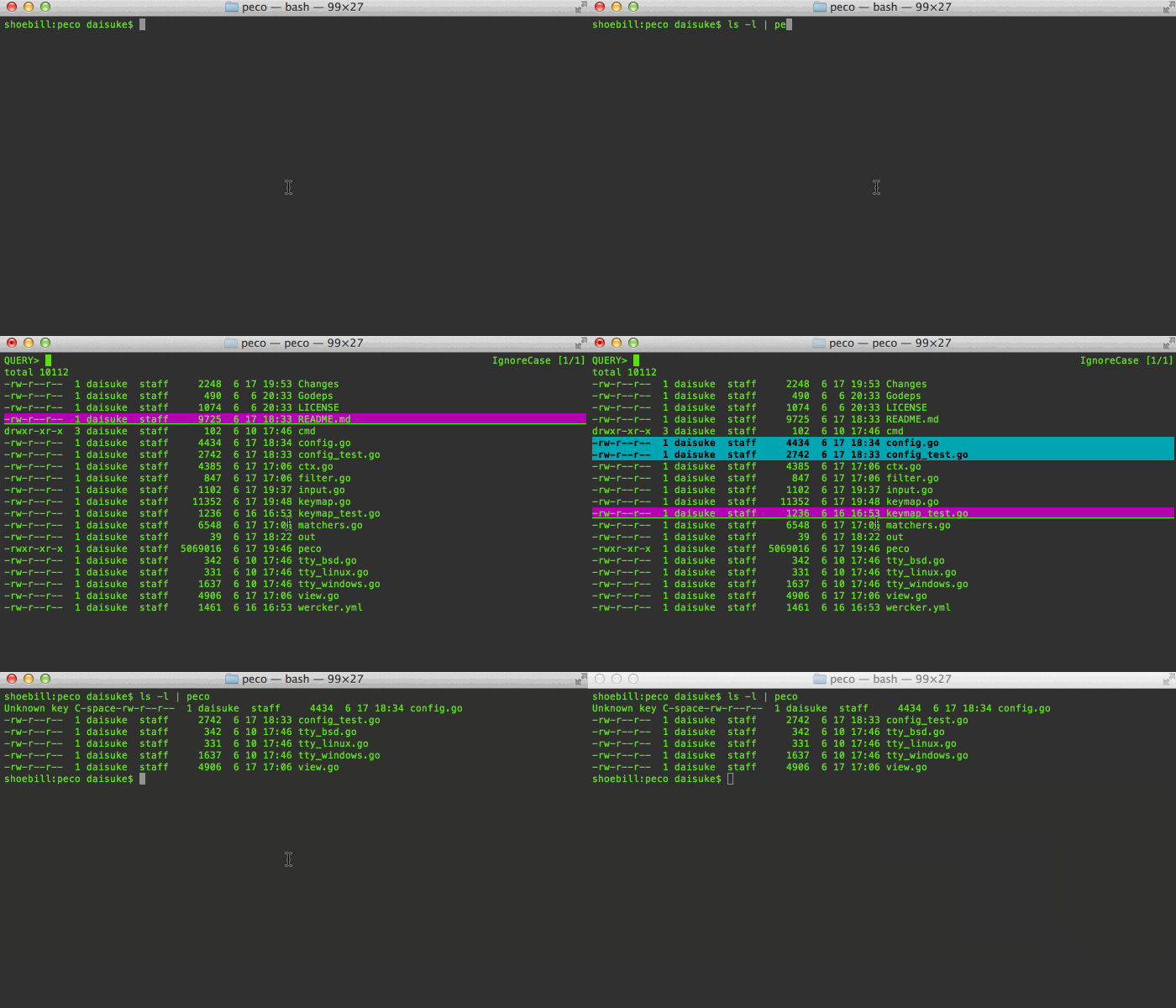
You can select multiple lines! (this example uses C-Space)
|
|
|
|
|
|
|
|
## Select Range Of Lines
|
|
|
|
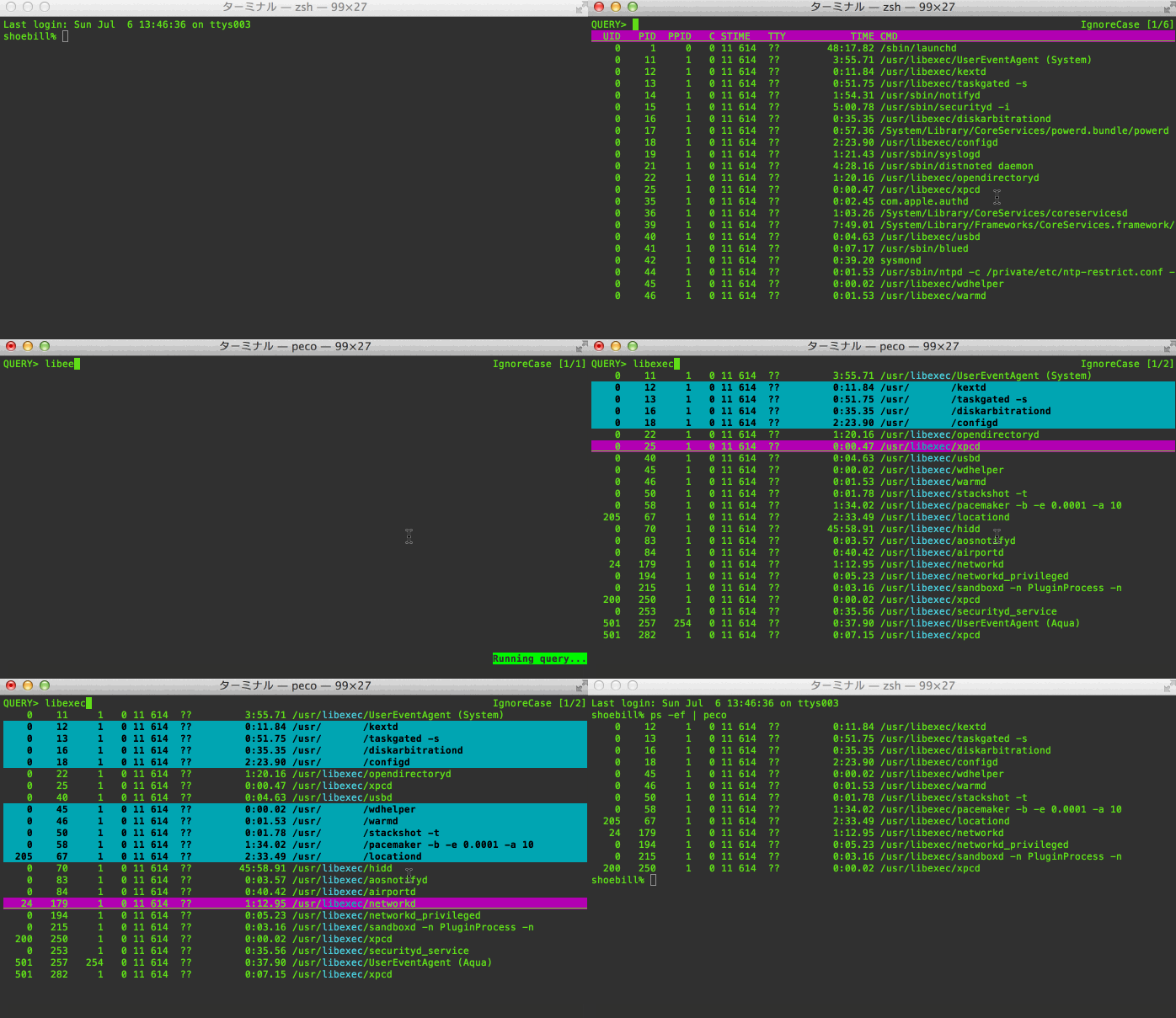
Not only can you select multiple lines one by one, you can select a range of lines (Note: The ToggleRangeMode action is not enabled by default. You need to put a custom key binding in your config file)
|
|
|
|
|
|
|
|
## Select Filters
|
|
|
|
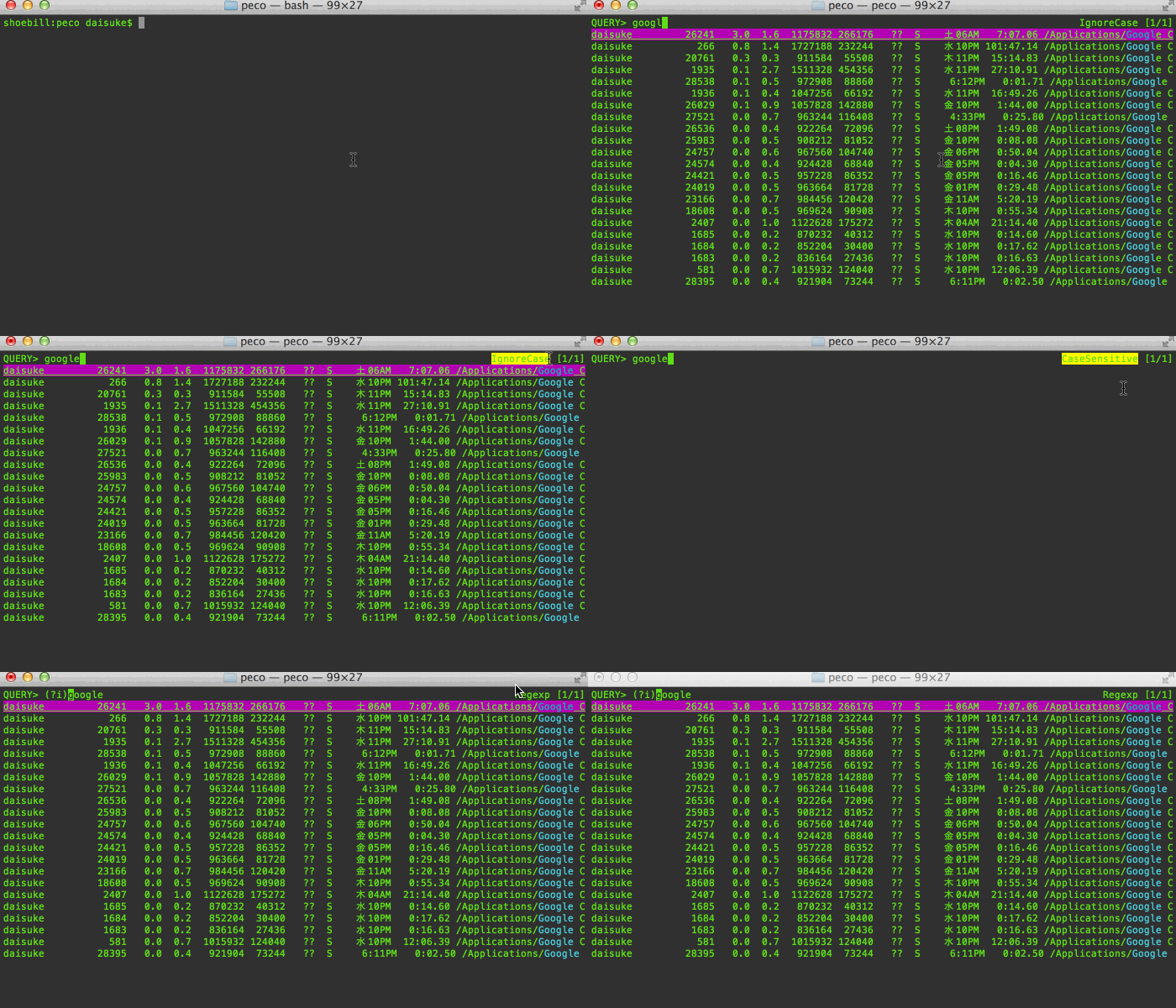
Different types of filters are available. Default is case-insensitive filter, so lines with any case will match. You can toggle between IgnoreCase, CaseSensitive, SmartCase, Regexp case insensitive, Regexp and Fuzzy filters.
|
|
|
|
The SmartCase filter uses case-*insensitive* matching when all of the queries are lower case, and case-*sensitive* matching otherwise.
|
|
|
|
The Regexp filter allows you to use any valid regular expression to match lines.
|
|
|
|
The Fuzzy filter allows you to find matches using partial patterns. For example, when searching for `ALongString`, you can enable the Fuzzy filter and search `ALS` to find it. The Fuzzy filter uses smart case search like the SmartCase filter. With the `FuzzyLongestSort` flag enabled in the configuration file, it does a smarter match. It sorts the matched lines by the following precedence: 1. longer substring, 2. earlier (left positioned) substring, and 3. shorter line.
|
|
|
|
|
|
|
|
## Multi-Stage Filtering (Freeze Results)
|
|
|
|
You can "freeze" the current filter results, clear the query, and continue filtering on top of the frozen results. This enables multi-stage filtering workflows -- for example, first filter by file extension, freeze, then filter by filename.
|
|
|
|
Use `peco.FreezeResults` to snapshot the current results and clear the query. Use `peco.UnfreezeResults` to discard the frozen results and revert to the original input. These actions are **not bound to any key by default** -- you need to add keybindings in your config file:
|
|
|
|
```json
|
|
{
|
|
"Keymap": {
|
|
"M-f": "peco.FreezeResults",
|
|
"M-u": "peco.UnfreezeResults"
|
|
}
|
|
}
|
|
```
|
|
|
|
You can freeze multiple times to progressively narrow down results. Unfreezing always reverts back to the original unfiltered input.
|
|
|
|
**Example:** Given this input via `ls | peco`:
|
|
|
|
```
|
|
QUERY>
|
|
app.go
|
|
app_test.go
|
|
filter.go
|
|
filter_test.go
|
|
main.go
|
|
readme.md
|
|
```
|
|
|
|
Type `_test` to filter:
|
|
|
|
```
|
|
QUERY> _test
|
|
app_test.go
|
|
filter_test.go
|
|
```
|
|
|
|
Press `M-f` to freeze. The two test files become the new base and the query clears:
|
|
|
|
```
|
|
QUERY>
|
|
app_test.go
|
|
filter_test.go
|
|
```
|
|
|
|
Now type `filter` to search within the frozen results:
|
|
|
|
```
|
|
QUERY> filter
|
|
filter_test.go
|
|
```
|
|
|
|
Press `Enter` to select `filter_test.go`, or press `M-u` to unfreeze and return to the original full list.
|
|
|
|
## Horizontal Scrolling
|
|
|
|
When input lines are longer than the terminal width, they are clipped at the edge of the screen. You can scroll horizontally to reveal the rest of the line using the `peco.ScrollLeft` and `peco.ScrollRight` actions. These actions are **not bound to any key by default** -- you need to add keybindings in your config file:
|
|
|
|
```json
|
|
{
|
|
"Keymap": {
|
|
"ArrowLeft": "peco.ScrollLeft",
|
|
"ArrowRight": "peco.ScrollRight"
|
|
}
|
|
}
|
|
```
|
|
|
|
Each scroll moves by half the terminal width.
|
|
|
|
If your input contains very long lines (e.g. minified files) and they do not appear at all, try increasing `MaxScanBufferSize` in your config. The default is 256 (KB), which limits the maximum length of a single input line.
|
|
|
|
## ANSI Color Support
|
|
|
|
When the `--ansi` flag is enabled, peco parses ANSI SGR (Select Graphic Rendition) escape sequences from the input and renders the original colors in the terminal. This lets you pipe colored output from tools like `git log --color`, `rg --color=always`, or `ls --color` through peco while preserving the visual formatting.
|
|
|
|
```
|
|
git log --color=always | peco --ansi
|
|
rg --color=always pattern | peco --ansi
|
|
ls --color=always | peco --ansi
|
|
```
|
|
|
|
Supported ANSI features:
|
|
- Basic 8 foreground and background colors (30-37, 40-47)
|
|
- 256-color palette (38;5;N, 48;5;N)
|
|
- 24-bit truecolor (38;2;R;G;B, 48;2;R;G;B)
|
|
- Bold, underline, and reverse attributes
|
|
- Reset sequences
|
|
|
|
When ANSI mode is enabled:
|
|
- Filtering and matching operate against the **stripped** (plain text) version of each line, so escape codes do not interfere with your queries
|
|
- ANSI colors are displayed as the **base layer**; peco's own selection and match highlighting take precedence over ANSI colors
|
|
- Selected lines' output preserves the **original** ANSI codes, so downstream tools receive colored text
|
|
|
|
ANSI mode can also be enabled permanently via the configuration file (see [ANSI](#ansi) under Global configuration).
|
|
|
|
## Context Lines (Zoom In/Out)
|
|
|
|
When filtering results (e.g. searching for "error" in a log file), you often need to see the surrounding lines to understand the context. peco supports expanding filtered results to show context lines around each match, similar to `grep -C`.
|
|
|
|
Two actions are available:
|
|
|
|
- **`peco.ZoomIn`** — Expands the current filtered view by showing 3 lines of context (before and after) around every matched line. Overlapping context ranges are merged automatically. Context lines are displayed with the `Context` style (bold by default) to visually distinguish them from matched lines.
|
|
|
|
- **`peco.ZoomOut`** — Collapses back to the original filtered view, restoring the cursor position.
|
|
|
|
These actions are **not bound to any key by default**. Add keybindings in your config file:
|
|
|
|
```json
|
|
{
|
|
"Keymap": {
|
|
"C-o": "peco.ZoomIn",
|
|
"C-i": "peco.ZoomOut"
|
|
}
|
|
}
|
|
```
|
|
|
|
Notes:
|
|
- ZoomIn only works when there is an active filter query. If you are viewing the unfiltered source, it is a no-op.
|
|
- You cannot zoom in twice — zooming in while already zoomed shows a status message.
|
|
- The cursor position is preserved: after ZoomIn, the cursor stays on the same matched line; after ZoomOut, it returns to where it was before zooming.
|
|
- Context lines cannot be selected — only the original matched lines participate in selection.
|
|
- The `Context` style can be customized in the config file (see [Styles](#styles)).
|
|
|
|
## Selectable Layout
|
|
|
|
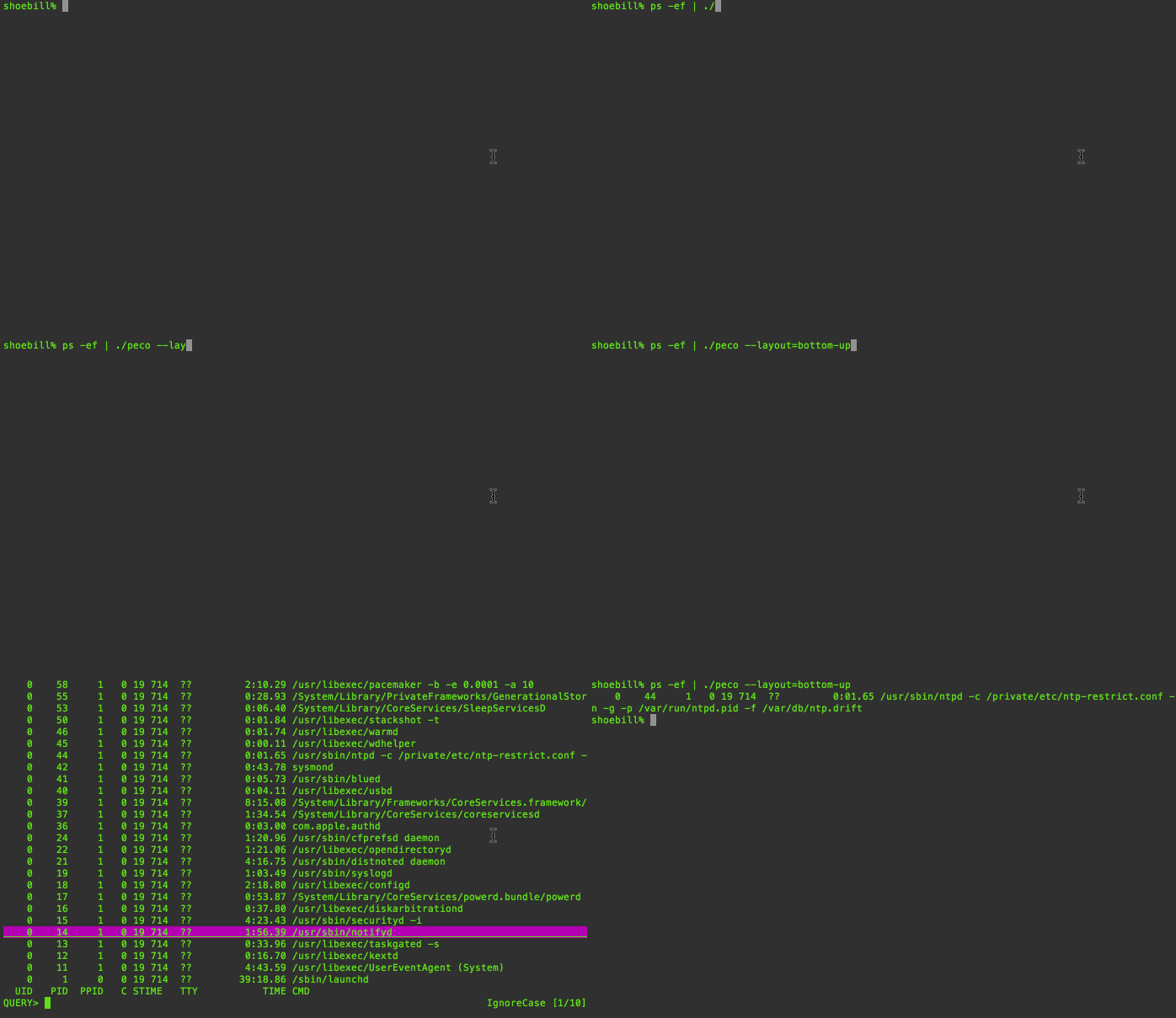
As of v0.2.5, if you would rather not move your eyes off of the bottom of the screen, you can change the screen layout by either providing the `--layout=bottom-up` command line option, or set the `Layout` variable in your configuration file
|
|
|
|
|
|
|
|
## Inline Mode (--height)
|
|
|
|
By default peco takes over the entire terminal screen using the alternate screen buffer. With `--height`, peco renders inline at the bottom of the terminal, preserving your scroll history above. This is similar to fzf's `--height` option.
|
|
|
|
```
|
|
# Render with 5 result lines at the bottom of the terminal
|
|
ls | peco --height 5
|
|
|
|
# Use 40% of the terminal height
|
|
ls | peco --height 40%
|
|
```
|
|
|
|
All layout modes (`top-down`, `bottom-up`, `top-down-query-bottom`) work with `--height`. See [--height](#--height-numpercentage) for details.
|
|
|
|
## Works on Windows!
|
|
|
|
I have been told that peco even works on windows :) Look ma! I'm not lying!
|
|
|
|

|
|
|
|
# Installation
|
|
|
|
### Just want the binary?
|
|
|
|
Go to the [releases page](https://github.com/peco/peco/releases), find the version you want, and download the zip file. Unpack the zip file, and put the binary to somewhere you want (on UNIX-y systems, /usr/local/bin or the like). Make sure it has execution bits turned on. Yes, it is a single binary! You can put it anywhere you want :)
|
|
|
|
_THIS IS THE RECOMMENDED WAY_ (except for macOS homebrew users)
|
|
|
|
### macOS (Homebrew, Scarf)
|
|
|
|
If you're on macOS and want to use homebrew:
|
|
|
|
```
|
|
brew install peco
|
|
```
|
|
|
|
or with Scarf:
|
|
|
|
```
|
|
scarf install peco
|
|
```
|
|
|
|
### Debian and Ubuntu based distributions (APT, Scarf)
|
|
|
|
There is an official Debian package that can be installed via APT:
|
|
|
|
```
|
|
apt install peco
|
|
```
|
|
|
|
or with Scarf:
|
|
|
|
```
|
|
scarf install peco
|
|
```
|
|
|
|
### Void Linux (XBPS)
|
|
|
|
```
|
|
xbps-install -S peco
|
|
```
|
|
|
|
### Arch Linux
|
|
|
|
There is an official Arch Linux package that can be installed via `pacman`:
|
|
|
|
```
|
|
pacman -Syu peco
|
|
```
|
|
|
|
### Windows (Chocolatey NuGet Users)
|
|
|
|
There's a third-party [peco package available](https://chocolatey.org/packages/peco) for Chocolatey NuGet.
|
|
|
|
```
|
|
C:\> choco install peco
|
|
```
|
|
|
|
### X-CMD (Linux, macOS, Windows WSL, Windows GitBash)
|
|
|
|
peco is available from [x-cmd](https://www.x-cmd.com).
|
|
|
|
To install peco, run:
|
|
|
|
```shell
|
|
x env use peco
|
|
```
|
|
|
|
### Linux / macOS / Windows (Conda, Mamba, Pixi)
|
|
|
|
`conda`, `mamba` and `pixi` are platform-agnostic package managers for conda-format packages.
|
|
|
|
This means that the same command can be used to install peco across Windows, MacOS, and Linux.
|
|
|
|
```
|
|
# conda
|
|
conda install -c conda-forge peco
|
|
|
|
# mamba
|
|
mamba install -c conda-forge peco
|
|
|
|
# install user-globally using pixi
|
|
pixi global install peco
|
|
```
|
|
|
|
### Building peco yourself
|
|
|
|
Make sure to clone the source code under $GOPATH (i.e. $GOPATH/src/github.com/peco/peco). This is required
|
|
as the main binary refers to an internal package, which requires that the source code be located in
|
|
the correct package location.
|
|
|
|
Navigate to the directory above, then run:
|
|
|
|
```
|
|
make build
|
|
```
|
|
|
|
This will do the following:
|
|
|
|
1. Run `go build` to create `releases/$VERSION_NUMBER/peco`
|
|
|
|
You can copy the binary to somewhere in your $PATH, and it should just work.
|
|
|
|
The above installs the correct versions of peco's dependencies. Then build it:
|
|
|
|
```
|
|
go build cmd/peco/peco.go
|
|
```
|
|
|
|
This compiles a peco binary in the root of the cloned peco repository. Copy this file to an appropriate location.
|
|
|
|
### go get IS NOT RECOMMENDED
|
|
|
|
Please DO NOT use `go get` to install this tool. It bypasses the developers' intention of controlling the dependency versioning.
|
|
|
|
# Command Line Options
|
|
|
|
### -h, --help
|
|
|
|
Display a help message
|
|
|
|
### --version
|
|
|
|
Display the version of peco
|
|
|
|
### --query <query>
|
|
|
|
Specifies the default query to be used upon startup. This is useful for scripts and functions where you can figure out beforehand what the most likely query string is.
|
|
|
|
### --print-query
|
|
|
|
When exiting, prints out the query typed by the user as the first line of output. The query will be printed even if there are no matches, if the program is terminated normally (i.e. enter key). On the other hand, the query will NOT be printed if the user exits via a cancel (i.e. esc key).
|
|
|
|
### --rcfile <filename>
|
|
|
|
Pass peco a configuration file, which currently must be a JSON file. If unspecified it will try a series of files by default. See `Configuration File` for the actual locations searched.
|
|
|
|
### -b, --buffer-size <num>
|
|
|
|
Limits the buffer size to `num`. This is an important feature when you are using peco against a possibly infinite stream, as it limits the number of lines that peco holds at any given time, preventing it from exhausting all the memory. By default the buffer size is unlimited.
|
|
|
|
### --null
|
|
|
|
WARNING: EXPERIMENTAL. This feature will probably stay, but the option name may change in the future.
|
|
|
|
Changes how peco interprets incoming data. When this flag is set, you may insert NUL ('\0') characters in your input. Anything before the NUL character is treated as the string to be displayed by peco and is used for matching against user query. Anything after the NUL character is used as the "result": i.e., when peco is about to exit, it displays this string instead of the original string displayed.
|
|
|
|
[Here's a simple example of how to use this feature](https://gist.github.com/mattn/3c7a14c1677ecb193acd)
|
|
|
|
### --initial-index
|
|
|
|
Specifies the initial line position upon start up. E.g. If you want to start out with the second line selected, set it to "1" (because the index is 0 based).
|
|
|
|
### --initial-filter `IgnoreCase|CaseSensitive|SmartCase|IRegexp|Regexp|Fuzzy`
|
|
|
|
Specifies the initial filter to use upon start up. You should specify the name of the filter like `IgnoreCase`, `CaseSensitive`, `SmartCase`, `IRegexp`, `Regexp` and `Fuzzy`. Default is `IgnoreCase`.
|
|
|
|
### --prompt
|
|
|
|
Specifies the query line's prompt string. When specified, takes precedence over the configuration file's `Prompt` section. The default value is `QUERY>`.
|
|
|
|
### --layout `top-down|bottom-up`
|
|
|
|
Specifies the display layout. Default is `top-down`, where query prompt is at the top, followed by the list, then the system status message line. `bottom-up` changes this to the list first (displayed in reverse order), the query prompt, and then the system status message line.
|
|
|
|
For `percol` users, `--layout=bottom-up` is almost equivalent of `--prompt-bottom --result-bottom-up`.
|
|
|
|
### --select-1
|
|
|
|
When specified *and* the input contains exactly 1 line, peco skips prompting you for a choice, and selects the only line in the input and immediately exits.
|
|
|
|
If there are multiple lines in the input, the usual selection view is displayed.
|
|
|
|
### --on-cancel `success|error`
|
|
|
|
Specifies the exit status to use when the user cancels the query execution.
|
|
For historical and back-compatibility reasons, the default is `success`, meaning if the user cancels the query, the exit status is 0. When you choose `error`, peco will exit with a non-zero value.
|
|
|
|
### --selection-prefix `string`
|
|
|
|
When specified, peco uses the specified prefix instead of changing line color to indicate currently selected line(s). default is to use colors. This option is experimental.
|
|
|
|
### --exec `string`
|
|
|
|
When specified, peco executes the specified external command (via shell), with peco's currently selected line(s) as its input from STDIN.
|
|
|
|
Upon exiting from the external command, the control goes back to peco where you can keep browsing your search buffer, and to possibly execute your external command repeatedly afterwards.
|
|
|
|
To exit out of peco when running in this mode, you must execute the Cancel command, usually the escape key.
|
|
|
|
### --ansi
|
|
|
|
Enables ANSI color code support. When this flag is set, peco parses ANSI SGR escape sequences from the input and renders the colors in the terminal UI. Filtering is performed against the plain text with ANSI codes stripped, and selected output preserves the original ANSI codes.
|
|
|
|
See [ANSI Color Support](#ansi-color-support) in the Features section for details.
|
|
|
|
### --height `num|percentage`
|
|
|
|
When specified, peco renders inline at the bottom of the terminal using only the requested number of lines, instead of taking over the full screen. This preserves your terminal scroll history above the peco interface.
|
|
|
|
The value can be:
|
|
|
|
- An absolute number of **result lines** (e.g. `--height 5`). The prompt and status bar are added automatically, so `--height 5` uses 7 terminal rows total (5 result lines + prompt + status bar).
|
|
- A percentage of the terminal height (e.g. `--height 50%`). This refers to the total height including prompt and status bar.
|
|
|
|
The minimum effective height is 3 rows (1 result line + prompt + status bar). Values that exceed the terminal height are clamped.
|
|
|
|
```
|
|
# Show 5 result lines inline
|
|
ls | peco --height 5
|
|
|
|
# Use 40% of the terminal
|
|
ls | peco --height 40%
|
|
```
|
|
|
|
Without `--height`, peco uses the full terminal screen (default behavior, unchanged).
|
|
|
|
# Configuration File
|
|
|
|
peco by default consults a few locations for the config files.
|
|
|
|
1. Location specified in --rcfile. If this doesn't exist, peco complains and exits
|
|
2. $XDG\_CONFIG\_HOME/peco/config.json
|
|
3. $HOME/.config/peco/config.json
|
|
4. for each directory listed in $XDG\_CONFIG\_DIRS, $DIR/peco/config.json
|
|
5. If all else fails, $HOME/.peco/config.json
|
|
|
|
Below are configuration sections that you may specify in your config file:
|
|
|
|
* [Global](#global)
|
|
* [Keymaps](#keymaps)
|
|
* [Styles](#styles)
|
|
* [CustomFilter](#customfilter)
|
|
* [Prompt](#prompt)
|
|
* [InitialMatcher](#initialmatcher)
|
|
* [Use256Color](#use256color)
|
|
* [ANSI](#ansi)
|
|
|
|
## Global
|
|
|
|
Global configurations that change the global behavior.
|
|
|
|
### Prompt
|
|
|
|
You can change the query line's prompt, which is `QUERY>` by default.
|
|
|
|
```json
|
|
{
|
|
"Prompt": "[peco]"
|
|
}
|
|
```
|
|
|
|
### InitialMatcher
|
|
|
|
*InitialMatcher* has been deprecated. Please use `InitialFilter` instead.
|
|
|
|
### InitialFilter
|
|
|
|
Specifies the filter name to start peco with. You should specify the name of the filter, such as `IgnoreCase`, `CaseSensitive`, `SmartCase`, `Regexp` and `Fuzzy`.
|
|
|
|
### FuzzyLongestSort
|
|
|
|
Enables the longest substring match and sorts the output. It affects only the Fuzzy filter.
|
|
|
|
Default value for FuzzyLongestSort is false.
|
|
|
|
### StickySelection
|
|
|
|
```json
|
|
{
|
|
"StickySelection": true
|
|
}
|
|
```
|
|
|
|
StickySelection allows selections to persist even between changes to the query.
|
|
For example, when you set this to true you can select a few lines, type in a
|
|
new query, select those lines, and then delete the query. The result is all
|
|
the lines that you selected before and after the modification to the query are
|
|
left intact.
|
|
|
|
Default value for StickySelection is false.
|
|
|
|
### SuppressStatusMsg
|
|
|
|
```json
|
|
{
|
|
"SuppressStatusMsg": true
|
|
}
|
|
```
|
|
|
|
SuppressStatusMsg suppresses the status message bar at the bottom of the screen.
|
|
When set to true, messages like "Running query..." will not be displayed.
|
|
|
|
Default value for SuppressStatusMsg is false.
|
|
|
|
### OnCancel
|
|
|
|
```json
|
|
{
|
|
"OnCancel": "error"
|
|
}
|
|
```
|
|
|
|
OnCancel is equivalent to `--on-cancel` command line option.
|
|
|
|
### MaxScanBufferSize
|
|
|
|
```json
|
|
{
|
|
"MaxScanBufferSize": 256
|
|
}
|
|
```
|
|
|
|
Controls the buffer sized (in kilobytes) used by `bufio.Scanner`, which is
|
|
responsible for reading the input lines. If you believe that your input has
|
|
very long lines that prohibit peco from reading them, try increasing this number.
|
|
|
|
The same time, the default MaxScanBuferSize is 256kb.
|
|
|
|
### ANSI
|
|
|
|
```json
|
|
{
|
|
"ANSI": true
|
|
}
|
|
```
|
|
|
|
Enables ANSI color code support. When set to `true`, peco parses and renders ANSI SGR escape sequences from the input. This is equivalent to using the `--ansi` command line flag. The command line flag takes precedence if both are specified.
|
|
|
|
Default value for ANSI is `false`.
|
|
|
|
See [ANSI Color Support](#ansi-color-support) in the Features section for details.
|
|
|
|
### Height
|
|
|
|
```json
|
|
{
|
|
"Height": "10"
|
|
}
|
|
```
|
|
|
|
`Height` is equivalent to using `--height` on the command line. When set, peco renders inline at the bottom of the terminal instead of using the full screen. The value is the number of result lines (e.g. `"10"`) or a percentage of terminal height (e.g. `"50%"`). The command line `--height` option takes precedence over this config value.
|
|
|
|
## Keymaps
|
|
|
|
Example:
|
|
|
|
```json
|
|
{
|
|
"Keymap": {
|
|
"M-v": "peco.ScrollPageUp",
|
|
"C-v": "peco.ScrollPageDown",
|
|
"C-x,C-c": "peco.Cancel"
|
|
}
|
|
}
|
|
```
|
|
|
|
### Key sequences
|
|
|
|
As of v0.2.0, you can use a list of keys (separated by comma) to register an action that is associated with a key sequence (instead of a single key). Please note that if there is a conflict in the key map, *the longest sequence always wins*. So In the above example, if you add another sequence, say, `C-x,C-c,C-c`, then the above `peco.Cancel` will never be invoked.
|
|
|
|
### Combined actions
|
|
|
|
As of v0.2.1, you can create custom combined actions. For example, if you find yourself repeatedly needing to select 4 lines out of the list, you may want to define your own action like this:
|
|
|
|
```json
|
|
{
|
|
"Action": {
|
|
"foo.SelectFour": [
|
|
"peco.ToggleRangeMode",
|
|
"peco.SelectDown",
|
|
"peco.SelectDown",
|
|
"peco.SelectDown",
|
|
"peco.ToggleRangeMode"
|
|
]
|
|
},
|
|
"Keymap": {
|
|
"M-f": "foo.SelectFour"
|
|
}
|
|
}
|
|
```
|
|
|
|
This creates a new combined action `foo.SelectFour` (the format of the name is totally arbitrary, I just like to put namespaces), and assigns that action to `M-f`. When it's fired, it toggles the range selection mode and highlights 4 lines, and then goes back to waiting for your input.
|
|
|
|
As a similar example, a common idiom in emacs is that `C-c C-c` means "take the contents of this buffer and accept it", whatever that means. This adds exactly that keybinding:
|
|
|
|
```json
|
|
{
|
|
"Action": {
|
|
"selectAllAndFinish": [
|
|
"peco.SelectAll",
|
|
"peco.Finish"
|
|
]
|
|
},
|
|
"Keymap": {
|
|
"C-c,C-c": "selectAllAndFinish"
|
|
}
|
|
}
|
|
```
|
|
|
|
### Available keys
|
|
|
|
Since v0.1.8, in addition to values below, you may put a `M-` prefix on any
|
|
key item to use Alt/Option key as a mask.
|
|
|
|
You can also use `C-` and `S-` prefixes on navigation keys to bind Ctrl and Shift modified keys. Multiple modifiers can be combined. For example:
|
|
|
|
```json
|
|
{
|
|
"Keymap": {
|
|
"C-ArrowLeft": "peco.BackwardWord",
|
|
"C-ArrowRight": "peco.ForwardWord",
|
|
"S-ArrowUp": "peco.SelectUp",
|
|
"C-M-Delete": "peco.DeleteForwardWord"
|
|
}
|
|
}
|
|
```
|
|
|
|
Note: `C-` on single characters (e.g. `C-a`) refers to ASCII control codes as before. `C-` as a modifier applies to navigation keys such as `ArrowLeft`, `Home`, `Delete`, etc.
|
|
|
|
| Name | Notes |
|
|
|-------------|-------|
|
|
| C-a ... C-z | Control + whatever character |
|
|
| C-2 ... C-8 | Control + 2..8 |
|
|
| C-[ ||
|
|
| C-] ||
|
|
| C-~ ||
|
|
| C-\_ ||
|
|
| C-\\\\ | Note that you need to escape the backslash |
|
|
| C-/ ||
|
|
| C-Space ||
|
|
| F1 ... F12 ||
|
|
| Esc ||
|
|
| Tab ||
|
|
| Enter ||
|
|
| Insert ||
|
|
| Delete ||
|
|
| BS ||
|
|
| BS2 ||
|
|
| Home ||
|
|
| End ||
|
|
| Pgup ||
|
|
| Pgdn ||
|
|
| ArrowUp ||
|
|
| ArrowDown ||
|
|
| ArrowLeft ||
|
|
| ArrowRight ||
|
|
| MouseLeft ||
|
|
| MouseMiddle ||
|
|
| MouseRight ||
|
|
|
|
|
|
### Key workarounds
|
|
|
|
Some keys just... don't map correctly / too easily for various reasons. Here, we'll list possible workarounds for key sequences that are often asked for:
|
|
|
|
|
|
| You want this | Use this instead | Notes |
|
|
|---------------|------------------|-------------------|
|
|
| Shift+Tab | M-\[,Z | Verified on macOS |
|
|
|
|
### Available actions
|
|
|
|
| Name | Notes |
|
|
|------|-------|
|
|
| peco.ForwardChar | Move caret forward 1 character |
|
|
| peco.BackwardChar | Move caret backward 1 character |
|
|
| peco.ForwardWord | Move caret forward 1 word |
|
|
| peco.BackwardWord | Move caret backward 1 word|
|
|
| peco.BackToInitialFilter| Switch to first filter in the list |
|
|
| peco.BeginningOfLine | Move caret to the beginning of line |
|
|
| peco.EndOfLine | Move caret to the end of line |
|
|
| peco.EndOfFile | Delete one character forward, otherwise exit from peco with failure status |
|
|
| peco.DeleteForwardChar | Delete one character forward |
|
|
| peco.DeleteBackwardChar | Delete one character backward |
|
|
| peco.DeleteForwardWord | Delete one word forward |
|
|
| peco.DeleteBackwardWord | Delete one word backward |
|
|
| peco.InvertSelection | Inverts the selected lines |
|
|
| peco.KillBeginningOfLine | Delete the characters under the cursor backward until the beginning of the line |
|
|
| peco.KillEndOfLine | Delete the characters under the cursor until the end of the line |
|
|
| peco.DeleteAll | Delete all entered characters |
|
|
| peco.RefreshScreen | Redraws the screen. Note that this effectively re-runs your query |
|
|
| peco.SelectPreviousPage | (DEPRECATED) Alias to ScrollPageUp |
|
|
| peco.SelectNextPage | (DEPRECATED) Alias to ScrollPageDown |
|
|
| peco.ScrollPageDown | Moves the selected line cursor for an entire page, downwards |
|
|
| peco.ScrollPageUp | Moves the selected line cursor for an entire page, upwards |
|
|
| peco.SelectUp | Moves the selected line cursor to one line above |
|
|
| peco.SelectDown | Moves the selected line cursor to one line below |
|
|
| peco.SelectPrevious | (DEPRECATED) Alias to SelectUp |
|
|
| peco.SelectNext | (DEPRECATED) Alias to SelectDown |
|
|
| peco.ScrollLeft | Scrolls the screen to the left |
|
|
| peco.ScrollRight | Scrolls the screen to the right |
|
|
| peco.ScrollFirstItem | Scrolls to the first item (in the entire buffer, not the current screen) |
|
|
| peco.ScrollLastItem | Scrolls to the last item (in the entire buffer, not the current screen) |
|
|
| peco.ToggleSelection | Selects the current line, and saves it |
|
|
| peco.ToggleSelectionAndSelectNext | Selects the current line, saves it, and proceeds to the next line |
|
|
| peco.ToggleSingleKeyJump | Enables SingleKeyJump mode a.k.a. "hit-a-hint" |
|
|
| peco.SelectNone | Remove all saved selections |
|
|
| peco.SelectAll | Selects the all line, and save it |
|
|
| peco.SelectVisible | Selects the all visible line, and save it |
|
|
| peco.ToggleSelectMode | (DEPRECATED) Alias to ToggleRangeMode |
|
|
| peco.CancelSelectMode | (DEPRECATED) Alias to CancelRangeMode |
|
|
| peco.ToggleQuery | Toggle list between filtered by query and not filtered. |
|
|
| peco.ToggleRangeMode | Start selecting by range, or append selecting range to selections |
|
|
| peco.CancelRangeMode | Finish selecting by range and cancel range selection |
|
|
| peco.RotateMatcher | (DEPRECATED) Use peco.RotateFilter |
|
|
| peco.RotateFilter | Rotate between filters (by default, ignore-case/no-ignore-case)|
|
|
| peco.FreezeResults | Freeze current results and clear the query to start a new filter on top |
|
|
| peco.UnfreezeResults | Discard frozen results and revert to the original input |
|
|
| peco.ZoomIn | Expand filtered results with context lines around each match |
|
|
| peco.ZoomOut | Collapse back to the filtered view (undo ZoomIn) |
|
|
| peco.Finish | Exits from peco with success status |
|
|
| peco.Cancel | Exits from peco with failure status, or cancel select mode |
|
|
|
|
|
|
### Default Keymap
|
|
|
|
Note: If in case below keymap seems wrong, check the source code in [keymap.go](https://github.com/peco/peco/blob/master/keymap.go) (look for NewKeymap).
|
|
|
|
|Key|Action|
|
|
|---|------|
|
|
|Esc|peco.Cancel|
|
|
|C-c|peco.Cancel|
|
|
|Enter|peco.Finish|
|
|
|C-f|peco.ForwardChar|
|
|
|C-a|peco.BeginningOfLine|
|
|
|C-b|peco.BackwardChar|
|
|
|C-d|peco.DeleteForwardChar|
|
|
|C-e|peco.EndOfLine|
|
|
|C-k|peco.KillEndOfLine|
|
|
|C-u|peco.KillBeginningOfLine|
|
|
|BS|peco.DeleteBackwardChar|
|
|
|C-8|peco.DeleteBackwardChar|
|
|
|C-w|peco.DeleteBackwardWord|
|
|
|C-g|peco.SelectNone|
|
|
|C-n|peco.SelectDown|
|
|
|C-p|peco.SelectUp|
|
|
|C-r|peco.RotateFilter|
|
|
|C-t|peco.ToggleQuery|
|
|
|C-Space|peco.ToggleSelectionAndSelectNext|
|
|
|ArrowUp|peco.SelectUp|
|
|
|ArrowDown|peco.SelectDown|
|
|
|ArrowLeft|peco.ScrollPageUp|
|
|
|ArrowRight|peco.ScrollPageDown|
|
|
|Pgup|peco.ScrollPageUp|
|
|
|Pgdn|peco.ScrollPageDown|
|
|
|
|
## Styles
|
|
|
|
For now, styles of following 7 items can be customized in `config.json`.
|
|
|
|
```json
|
|
{
|
|
"Style": {
|
|
"Basic": ["on_default", "default"],
|
|
"SavedSelection": ["bold", "on_yellow", "white"],
|
|
"Selected": ["underline", "on_cyan", "black"],
|
|
"Query": ["yellow", "bold"],
|
|
"Matched": ["red", "on_blue"],
|
|
"Prompt": ["green", "bold"],
|
|
"Context": ["bold"]
|
|
}
|
|
}
|
|
```
|
|
|
|
- `Basic` for not selected lines
|
|
- `SavedSelection` for lines of saved selection
|
|
- `Selected` for a currently selecting line
|
|
- `Query` for a query line
|
|
- `Matched` for a query matched word
|
|
- `Prompt` for the query prompt prefix (e.g., `QUERY>`)
|
|
- `Context` for context lines shown by ZoomIn (default: bold)
|
|
|
|
### Foreground Colors
|
|
|
|
- `"black"` for `tcell.ColorBlack`
|
|
- `"red"` for `tcell.ColorRed`
|
|
- `"green"` for `tcell.ColorGreen`
|
|
- `"yellow"` for `tcell.ColorYellow`
|
|
- `"blue"` for `tcell.ColorBlue`
|
|
- `"magenta"` for `tcell.ColorMagenta`
|
|
- `"cyan"` for `tcell.ColorCyan`
|
|
- `"white"` for `tcell.ColorWhite`
|
|
- `"0"`-`"255"` for 256color ([Use256Color](#use256color) must be enabled)
|
|
|
|
### Background Colors
|
|
|
|
- `"on_black"` for `tcell.ColorBlack`
|
|
- `"on_red"` for `tcell.ColorRed`
|
|
- `"on_green"` for `tcell.ColorGreen`
|
|
- `"on_yellow"` for `tcell.ColorYellow`
|
|
- `"on_blue"` for `tcell.ColorBlue`
|
|
- `"on_magenta"` for `tcell.ColorMagenta`
|
|
- `"on_cyan"` for `tcell.ColorCyan`
|
|
- `"on_white"` for `tcell.ColorWhite`
|
|
- `"on_0"`-`"on_255"` for 256color ([Use256Color](#use256color) must be enabled)
|
|
|
|
### Attributes
|
|
|
|
- `"bold"` for fg: `tcell.AttrBold`
|
|
- `"underline"` for fg: `tcell.AttrUnderline`
|
|
- `"reverse"` for fg: `tcell.AttrReverse`
|
|
- `"on_bold"` for bg: `tcell.AttrBold` (this attribute actually makes the background blink on some platforms/environments, e.g. linux console, xterm...)
|
|
|
|
## CustomFilter
|
|
|
|
This is an experimental feature. Please note that some details of this specification may change
|
|
|
|
By default `peco` comes with `IgnoreCase`, `CaseSensitive`, `SmartCase`, `IRegexp`, `Regexp` and `Fuzzy` filters, but since v0.1.3, it is possible to create your own custom filter.
|
|
|
|
The filter will be executed via `Command.Run()` as an external process, and it will be passed the query values in the command line, and the original unaltered buffer is passed via `os.Stdin`. Your filter must perform the matching, and print out to `os.Stdout` matched lines. Your filter MAY be called multiple times if the buffer
|
|
given to peco is big enough. See `BufferThreshold` below.
|
|
|
|
Note that currently there is no way for the custom filter to specify where in the line the match occurred, so matched portions in the string WILL NOT BE HIGHLIGHTED.
|
|
|
|
The filter does not need to be a go program. It can be a perl/ruby/python/bash script, or anything else that is executable.
|
|
|
|
Once you have a filter, you must specify how the matcher is spawned:
|
|
|
|
```json
|
|
{
|
|
"CustomFilter": {
|
|
"MyFilter": {
|
|
"Cmd": "/path/to/my-matcher",
|
|
"Args": [ "$QUERY" ],
|
|
"BufferThreshold": 100
|
|
}
|
|
}
|
|
}
|
|
```
|
|
|
|
`Cmd` specifies the command name. This must be searchable via `exec.LookPath`.
|
|
|
|
Elements in the `Args` section are string keys to array of program arguments. The special token `$QUERY` will be replaced with the unaltered query as the user typed in (i.e. multiple-word queries will be passed as a single string). You may pass in any other arguments in this array. If you omit this in your config, a default value of `[]string{"$QUERY"}` will be used
|
|
|
|
`BufferThreshold` specifies that the filter command should be invoked when peco has this many lines to process
|
|
in the buffer. For example, if you are using peco against a 1000-line input, and your `BufferThreshold` is 100 (which is the default), then your filter will be invoked 10 times. For obvious reasons, the larger this threshold is, the faster the overall performance will be, but the longer you will have to wait to see the filter results.
|
|
|
|
You may specify as many filters as you like in the `CustomFilter` section.
|
|
|
|
### Examples
|
|
|
|
* [An example of a simple perl regexp matcher](https://gist.github.com/mattn/24712964da6e3112251c)
|
|
* [An example using migemogrep Japanese grep using latin-1 chars](https://github.com/peco/peco/wiki/CustomFilter)
|
|
|
|
## Layout
|
|
|
|
See --layout.
|
|
|
|
## SingleKeyJump
|
|
|
|
```
|
|
{
|
|
"SingleKeyJump": {
|
|
"ShowPrefix": true
|
|
}
|
|
}
|
|
```
|
|
|
|
## SelectionPrefix
|
|
|
|
`SelectionPrefix` is equivalent to using `--selection-prefix` in the command line.
|
|
|
|
```
|
|
{
|
|
"SelectionPrefix": ">"
|
|
}
|
|
```
|
|
|
|
## Use256Color
|
|
|
|
Boolean value that determines whether or not to use 256color. The default is `false`.
|
|
|
|
Note: This has no effect on Windows because Windows console does not support extra color modes.
|
|
|
|
```json
|
|
{
|
|
"Use256Color": true
|
|
}
|
|
```
|
|
|
|
# FAQ
|
|
|
|
## Does peco work on (msys2|cygwin)?
|
|
|
|
No. https://github.com/peco/peco/issues/336#issuecomment-243939696
|
|
(Updated Feb 23, 2017: "Maybe" on cygwin https://github.com/peco/peco/issues/336#issuecomment-281912949)
|
|
|
|
## Non-latin fonts (e.g. Japanese) look weird on my Windows machine...?
|
|
|
|
Are you using raster fonts? https://github.com/peco/peco/issues/341
|
|
|
|
## Seeing escape sequences `[200~` and `[201~` when pasting text?
|
|
|
|
Disable bracketed paste mode. https://github.com/peco/peco/issues/417
|
|
|
|
# Hacking
|
|
|
|
First, fork this repo, and get your clone locally.
|
|
|
|
1. Make sure you have [go](http://golang.org) installed, with GOPATH appropriately set
|
|
2. Make sure you have `make` installed
|
|
|
|
To test, run
|
|
|
|
```
|
|
make test
|
|
```
|
|
|
|
To build, run
|
|
|
|
```
|
|
make
|
|
```
|
|
|
|
This will create a `peco` binary in `$(RELEASE_DIR)/peco_$(GOOS)_$(GOARCH)/peco$(SUFFIX)`. Or, of course, you can just run
|
|
|
|
```
|
|
go build cmd/peco/peco.go
|
|
```
|
|
|
|
which will create the binary in the local directory.
|
|
|
|
# TODO
|
|
|
|
Unit test it.
|
|
|
|
# AUTHORS
|
|
|
|
* Daisuke Maki (lestrrat)
|
|
* mattn
|
|
* syohex
|
|
|
|
# CONTRIBUTORS
|
|
|
|
* HIROSE Masaaki
|
|
* Joel Segerlind
|
|
* Lukas Lueg
|
|
* Mitsuoka Mimura
|
|
* Ryota Arai
|
|
* Shinya Ohyanagi
|
|
* Takashi Kokubun
|
|
* Yuya Takeyama
|
|
* cho45
|
|
* cubicdaiya
|
|
* kei\_q
|
|
* negipo
|
|
* sona\_tar
|
|
* sugyan
|
|
* swdyh
|
|
* MURAOKA Taro (kaoriya/koron), for aho-corasick search
|
|
* taichi, for the gif working on Windows
|
|
* uobikiemukot
|
|
* Samuel Lemaitre
|
|
* Yousuke Ushiki
|
|
* Linda\_pp
|
|
* Tomohiro Nishimura (Sixeight)
|
|
* Naruki Tanabe (narugit)
|
|
|
|
# Notes
|
|
|
|
Obviously, kudos to the original percol: https://github.com/mooz/percol
|
|
Much code stolen from https://github.com/mattn/gof
|
|
|